
Azure provides a Free Trial for new users to explore cloud services risk‑free.
Key Features:
- $200 free credits valid for 30 days.
- 12 months of free access to popular services (VMs-specific SKU, databases, storage).
- Always‑free services like Azure Functions, DevTest Labs, and more.
Steps to Get Started:
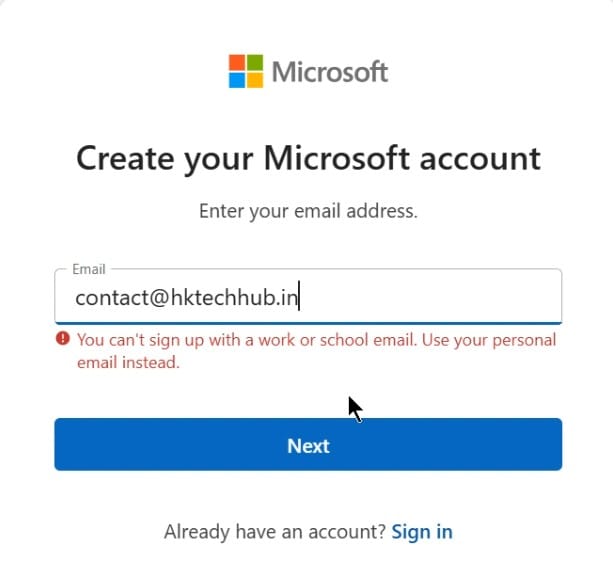
- Create Microsoft Account – Go to the Azure Free Trial page and sign up using your personal email address to create a Microsoft account.

- Verify Identity – Enter the code sent to your email address and confirm.
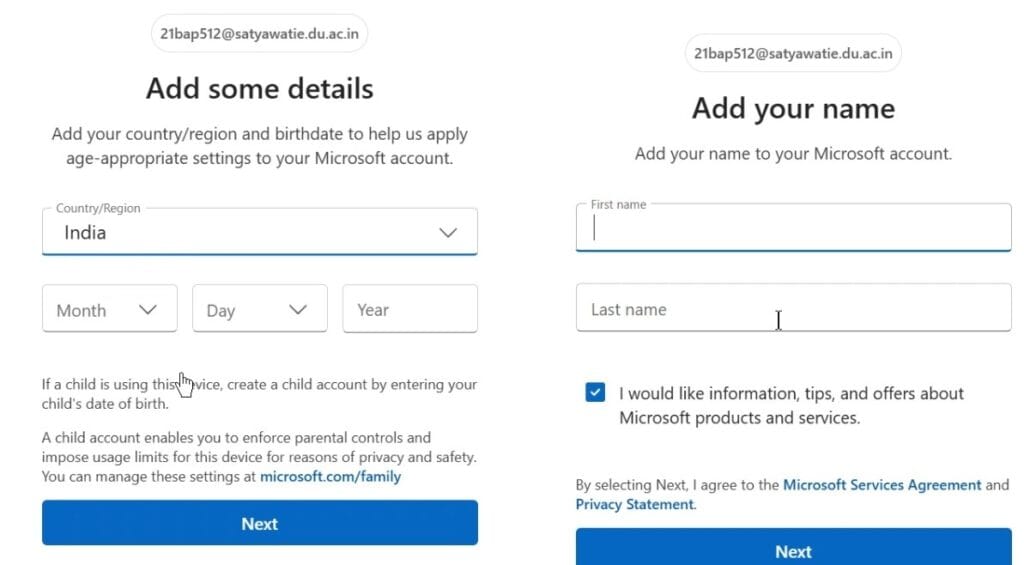
- Enter Personal Details – Fill in your country/region, Date of Birth, Name, and phone number for verification.
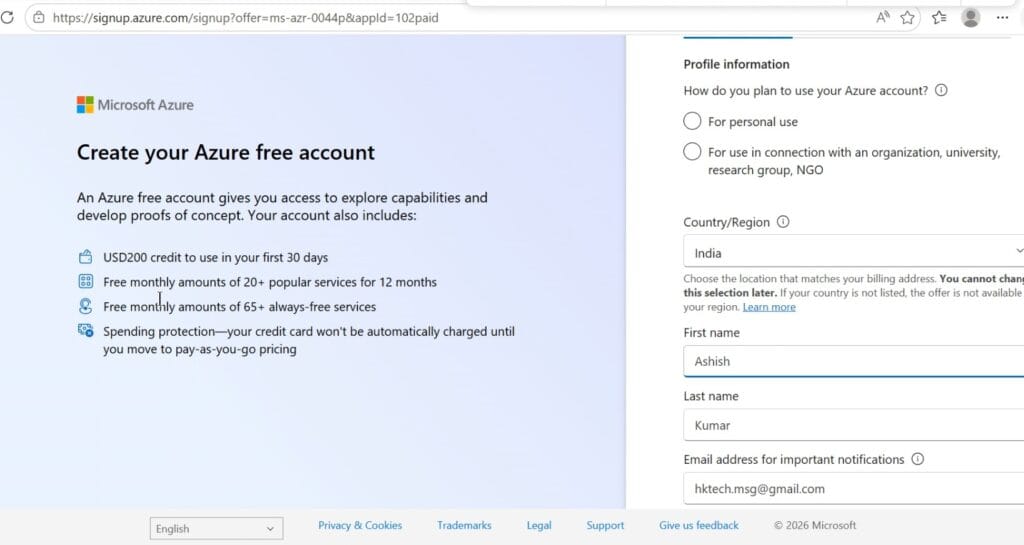
- Profile Information – Fill in Prompted details on Azure Free account Page like choose For personal use, Region, Name, Email ID, Phone number, Company Name then click Next.

- Address Information – Fill in your address details then Next.

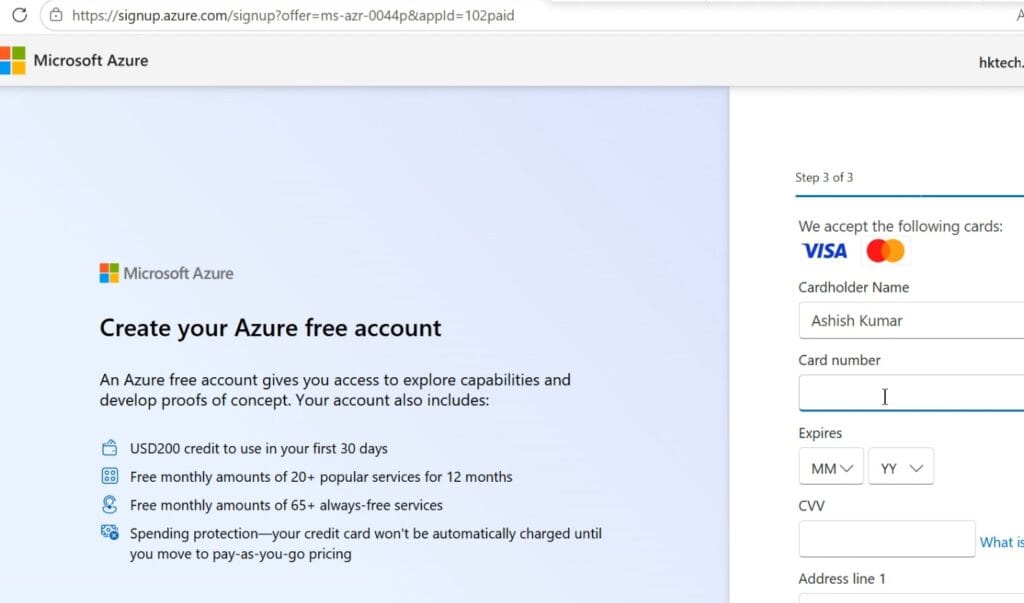
- Payment Information – Provide a valid credit or debit card details for identity verification, it will deduct only 1 or 2 INR for verification— you won’t be charged unless you upgrade then click Sign-up.

- Accept Terms – Review and accept Microsoft’s subscription agreement and privacy statement.
- Access Azure Portal – Once verified, you’ll be redirected to the Azure Portal with $200 credits and free services.
- Track credit usage in Cost Management + Billing to avoid exceeding credits.
- Create Microsoft Account – Go to the Azure Free Trial page and sign up using your personal email address to create a Microsoft account.

Designed for learners, this plan removes the need for a credit/debit card.
Key Features:
- $100 free credits valid for 12 months.
- Free access to developer tools like Visual Studio Code, GitHub Student Pack, and Azure Dev Tools for Teaching.
- Ideal for experimenting with VMs, databases, and app services.
Steps to Get Started:
- Visit Azure Students Page – Go to the Azure for Students signup page to begin the registration process and click on Start Free.
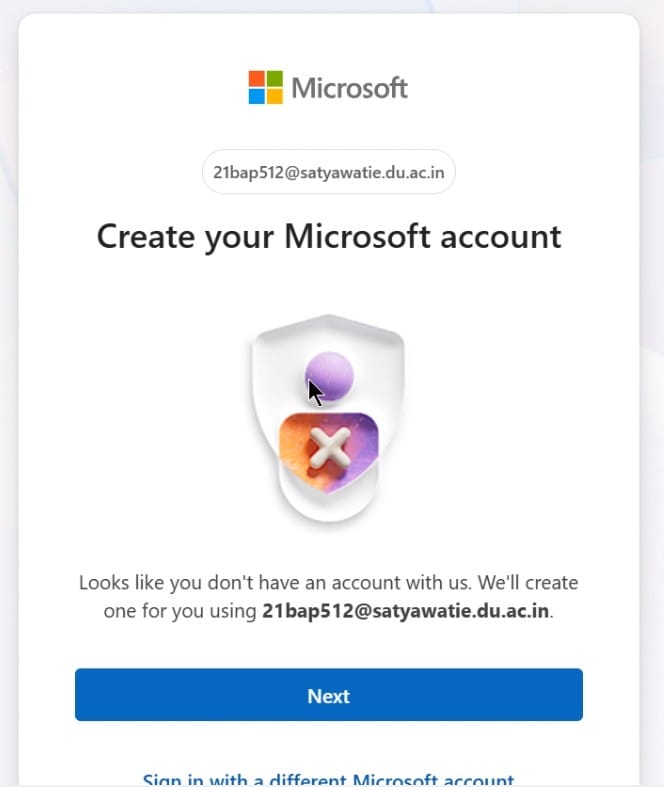
- Sign In or Create Account – Use your academic/college/university email to sign in or create a new Microsoft account.

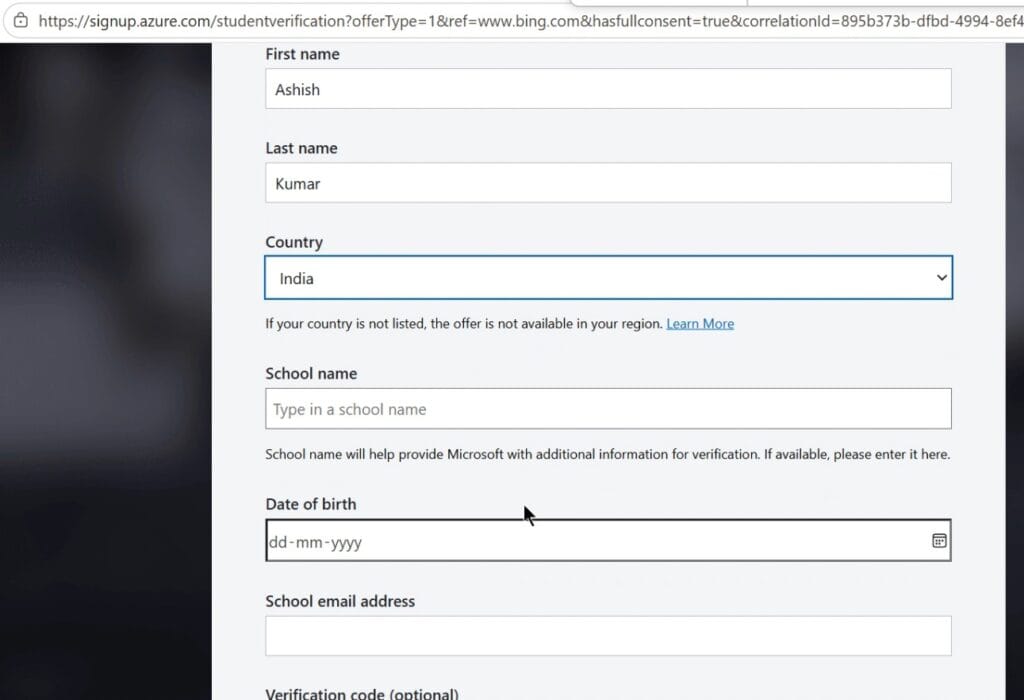
- Fill your Region, Date of Birth, Name, Address, College Name, Address when prompted on form.


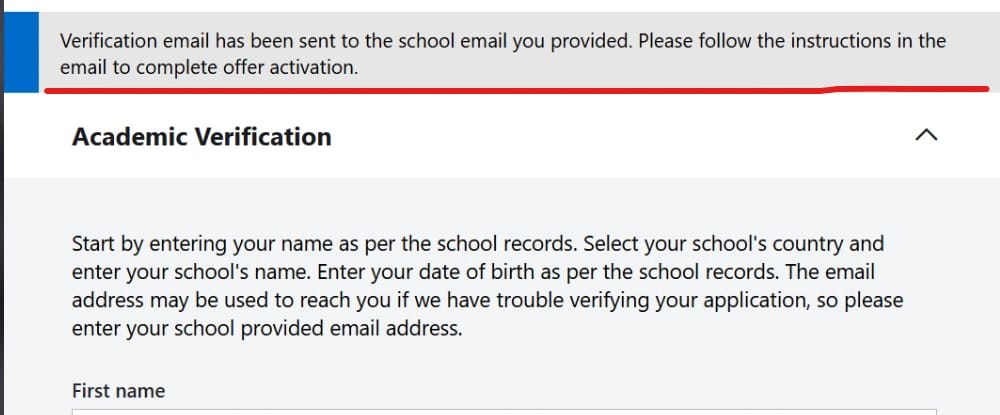
- Verify Student Status – You will receive an email with Verification link from Microsoft for Confirm eligibility by verifying your school or university email domain.

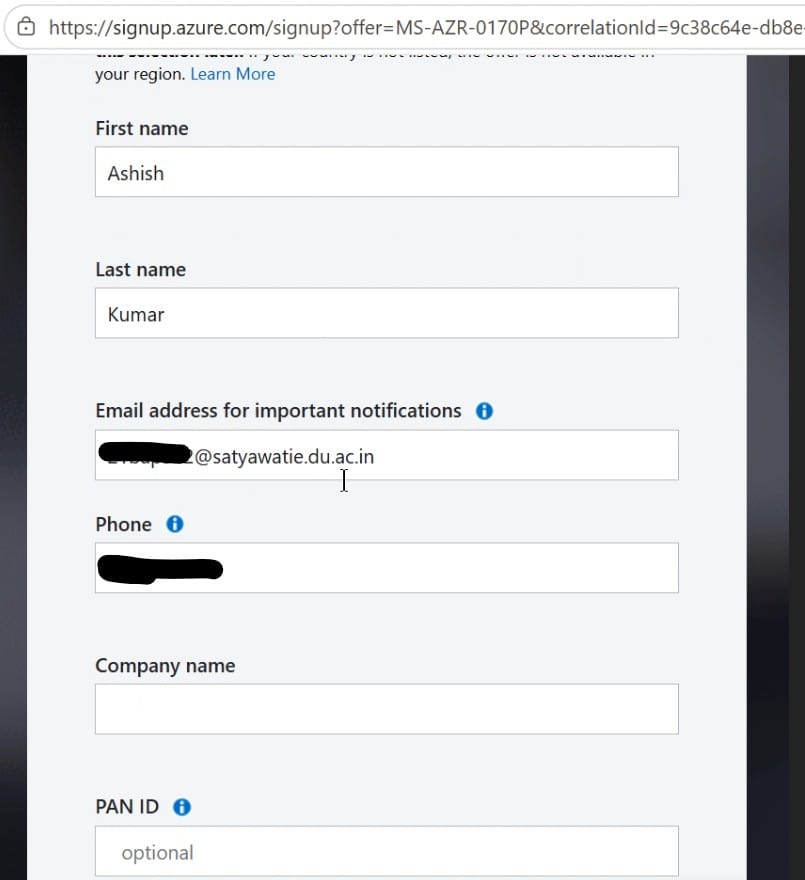
- Enter Basic Details – Provide your name, country/region, company name and phone number for Azure account setup.

- No Credit Card Needed – Unlike the free trial, students don’t need to provide payment details.
- Accept Terms – Agree to Microsoft’s subscription agreement and privacy statement.
- Access Azure Portal – You’ll receive $100 credits for 12 months and free developer tools to start experimenting with cloud services.

- Go to Manage my account page to update the sign in method like password/password-less login, Multifactor authentication setup or 2-factor authentication.

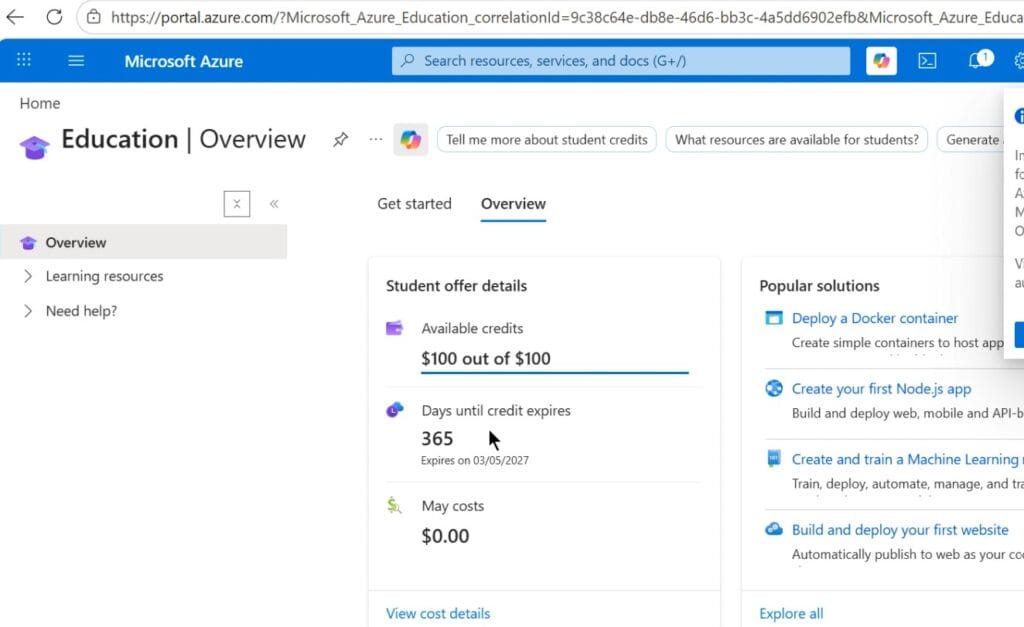
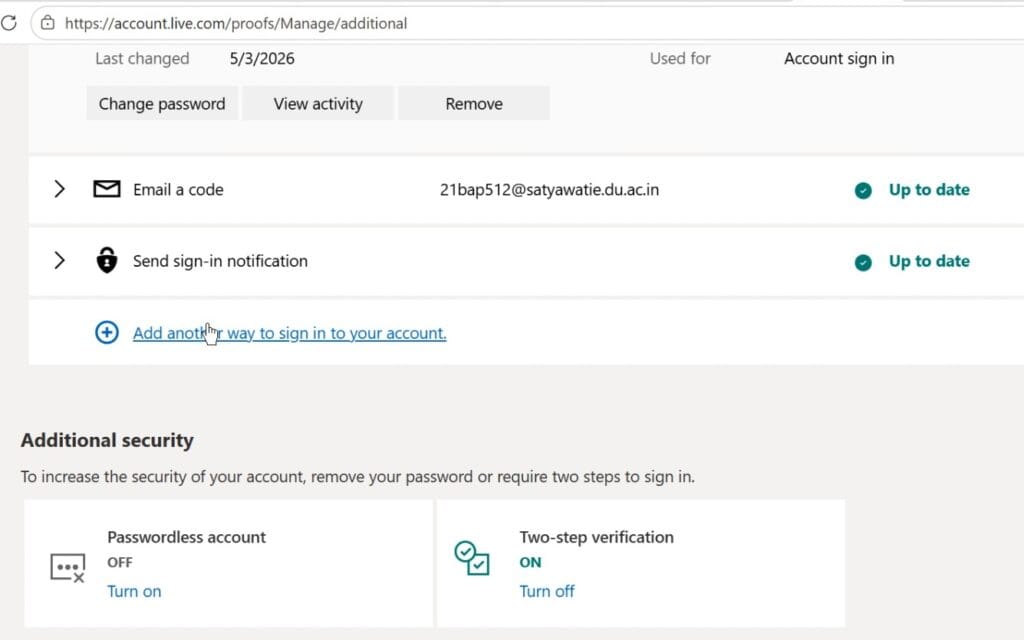
Once signed up, you’ll access the Azure Portal — the central dashboard for managing resources.
Landing Page Overview:
- Home Dashboard: Quick access to Microsoft Entra ID, resource groups, subscriptions, and services.
- Search Bar: Find any service instantly (VMs, databases, networking).
- Navigation Menu: Access Compute, Networking, Storage, Databases, AI + ML, and Security.
- Cost Management: Monitor credits, spending, and budgets.
- Marketplace: Explore pre‑built solutions and partner apps.
- Help + Support: Access documentation, tutorials, and community forums.
- Manage My Account: Quick access to manage your account portal for account management and security features.
- Cloud Shell: To run the Bash or powershell Commands.
- Notification Bell: To get the instant notification for deployment or configuration changes.