
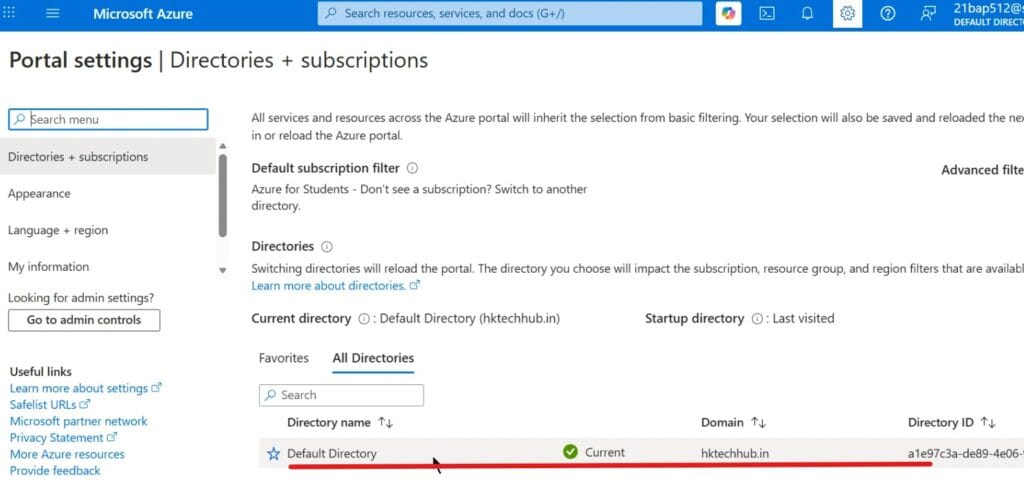
Microsoft Azure Directory refers to Microsoft Entra ID (formerly Azure Active Directory), which is Azure’s cloud-based identity and access management (IAM) service. It is the backbone of authentication, authorization, and governance in Azure and Microsoft 365.
Definition:
A cloud-based directory and identity service that manages users, groups, devices, and applications. It is your Microsoft Entra ID tenant.
Why Important:
- Every subscription is linked to a single directory.
- Centralized identity ensures consistent access control across subscriptions.
Tenant & Tenant ID:
- Tenant: Isolated instance of Entra ID representing your organization.
- Tenant ID: Globally unique GUID used in APIs, SDKs, and automation.

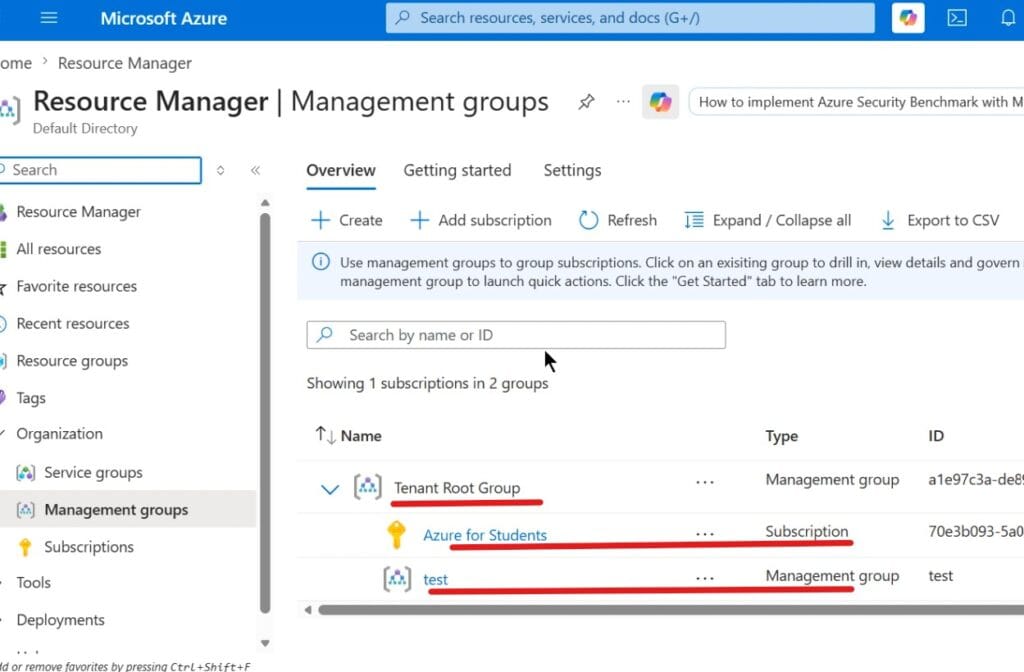
In Azure, Management Groups are containers that sit above subscriptions, allowing you to apply governance, access control, and policies across multiple subscriptions at scale. The Root Management Group is automatically created at the top of every Microsoft Entra tenant’s hierarchy and contains all other management groups and subscriptions by default.
Definition:
Containers that organize multiple subscriptions or other management groups under a single hierarchy.
Why Important:
- Apply policies and role assignments across all subscriptions in a group.
- Simplify governance for enterprises with dozens or hundreds of subscriptions.
- Ensure consistent compliance and security across environments.
Example:
- Create a “Production” management group and enforce stricter security policies.
- Create a “Development” group with relaxed policies for testing.

Best Practice:
- Always design a hierarchy (Root → Department → Environment) before scaling workloads.
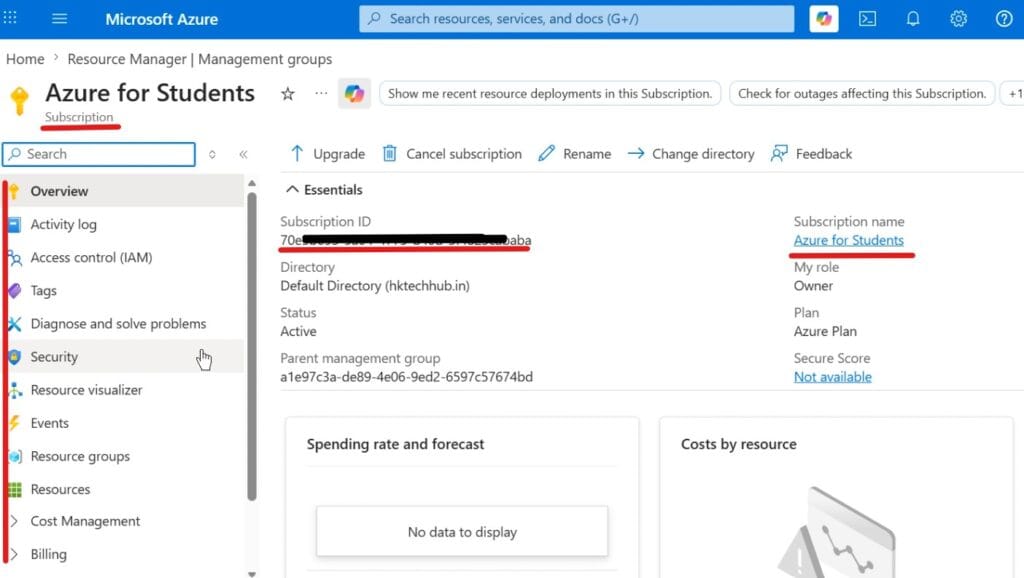
An Azure Subscription is the fundamental-logical container for all resources you create in Azure. It defines billing, quotas, and access boundaries, while the Subscription ID uniquely identifies it. Each subscription is tied to a billing account and serves as the unit of management, cost tracking, and governance.
Definition:
Logical containers for Azure services or resources, tied to a billing account and quotas. There are multiple types of subscriptions like Free Trial, Pay-As-You-Go (PAYG), Enterprise Agreement (EA), Azure Plan (MCA) or Sponsorship/Education.
Why Important:
- Each subscription has its own billing account, spending limits, and quotas.
- Helps separate workloads (Dev/Test vs. Production) or departments (HR, Finance, IT).
Example:
- One subscription for corporate IT workloads.
- Another subscription for customer‑facing applications.

Best Practice:
- Use multiple subscriptions to isolate workloads and manage costs effectively.
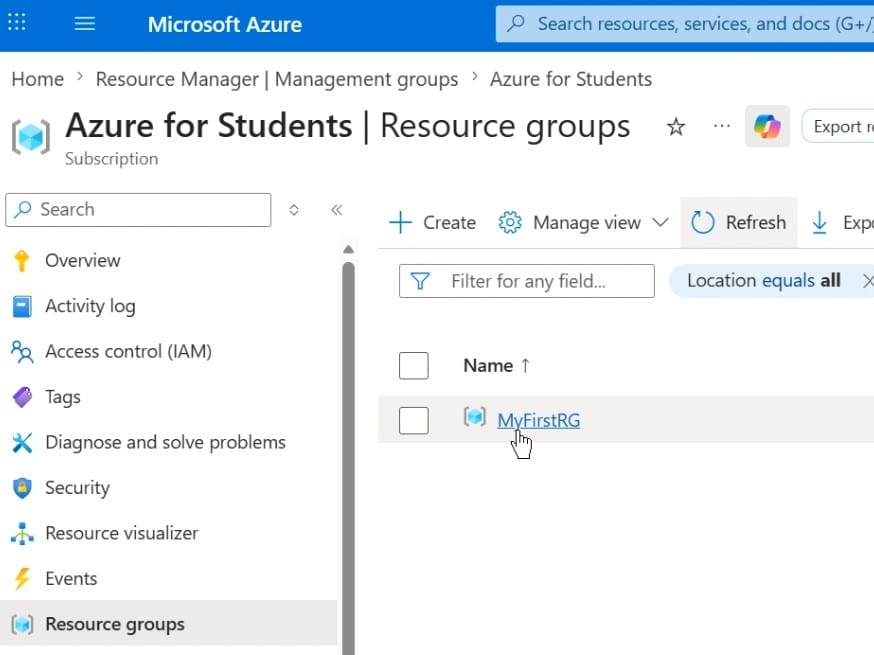
Azure Resource Groups are logical containers under the subscriptions that hold related resources for an application or workload. They provide a way to organize, manage, and apply policies to resources as a unit. Each resource group is created in a specific Azure region, but resources inside can exist in different regions. Resources inside a resource group share the same lifecycle. You cannot create a Resource Group inside another Resource Group.
Definition:
A logical container that groups related Azure resources (VMs, databases, storage accounts, virtual networks, etc.) so they can be managed together.
Why Important:
- Simplifies lifecycle management — resources in a group can be deployed, updated, or deleted together.
- Enables tagging for cost tracking and governance.
Example:
- A resource group for a web application containing VMs, storage, and networking.

- A resource group for a web application containing VMs, storage, and networking.
Best Practice:
- Apply consistent naming conventions.
- Use tags (e.g.,
Environment=Production,Owner=IT) for chargeback and reporting.
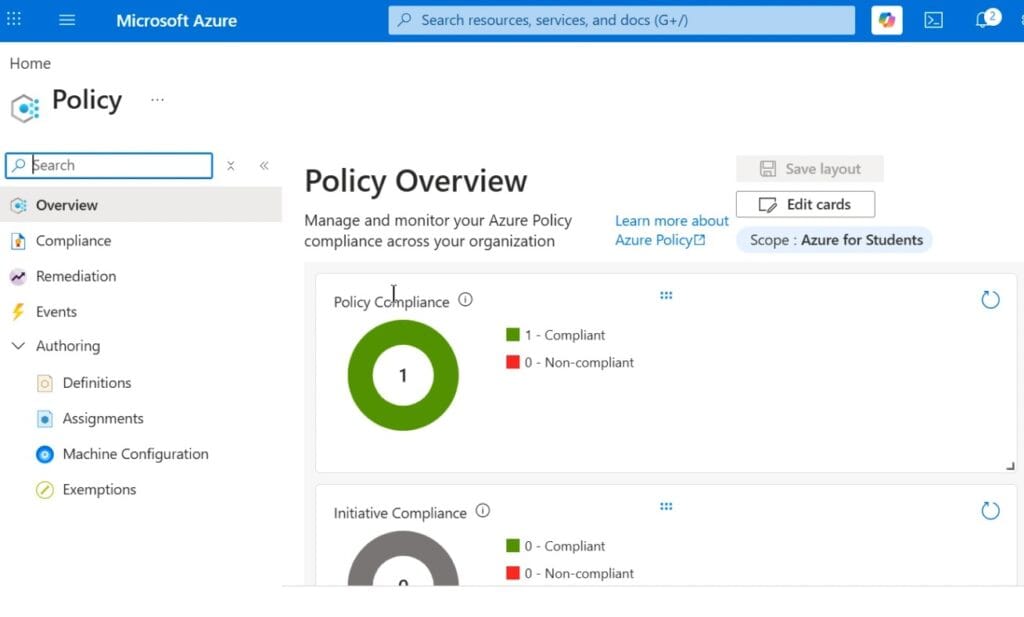
Azure Policies are governance tools that enforce rules and compliance across your Azure resources. They help ensure that deployments meet organizational standards and regulatory requirements. Policies can be assigned at different levels — Management Group, Subscription, Resource Group, or individual Resource. Policies continuously audit resources and mark them as Compliant or Non-compliant.
Azure Blueprints: Deploy pre‑configured environments with policies and RBAC.
Definition:
Rules that enforce compliance and governance across resources.
Why Important:
- Prevents misconfigurations and enforces standards automatically.
- Ensures compliance with security and regulatory requirements.
Examples:
- Restrict VM sizes to control costs.
- Require encryption for storage accounts.
- Enforce resource tagging for chargeback.

Best Practice:
- Assign policies at the management group level for broad enforcement.
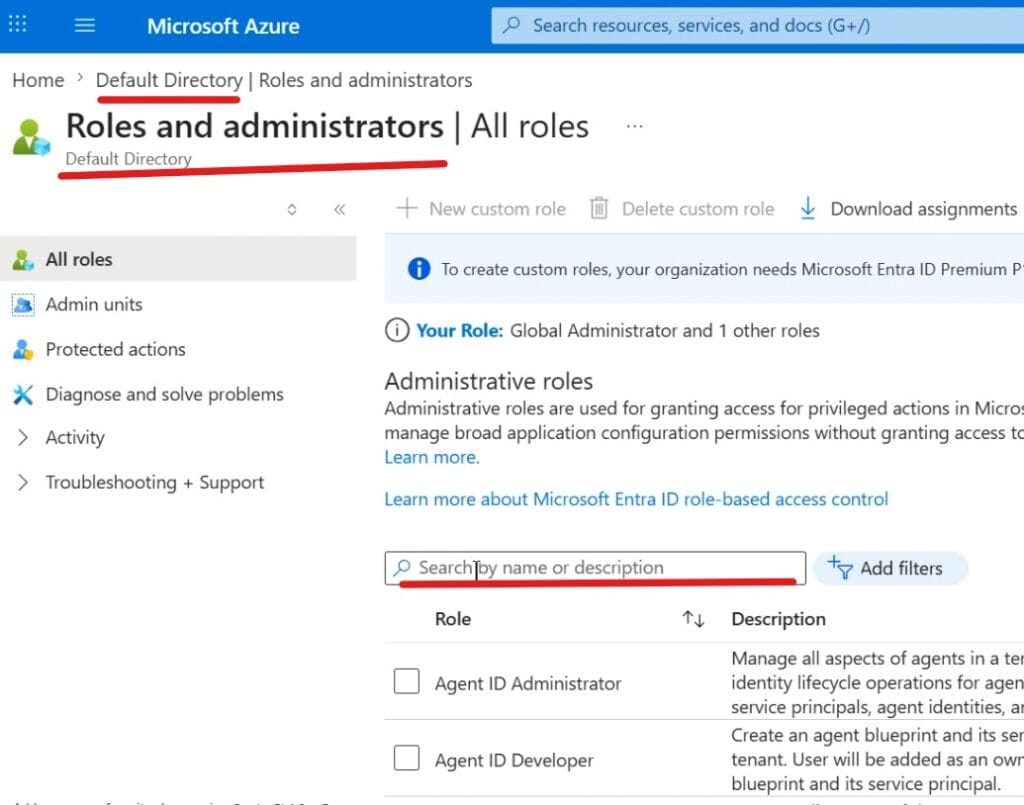
Microsoft Entra Roles (formerly Azure AD roles) are built-in or custom administrative roles in Microsoft Entra ID that control access to identity-related resources such as users, groups, domains, and applications. These roles applies to directory-level objects (users, groups, applications, domains). There are about 60 predefined roles (e.g., Global Administrator, User Administrator, Exchange Administrator). They differ from Azure RBAC roles, which govern access to Azure resources like VMs, storage, and networking.
Definition:
Roles within Microsoft Entra ID that control directory‑level permissions.
Why Important:
- Protects critical identity functions (user creation, domain management, security policies).
- Ensures least privilege access at the directory level.
Examples:
- Global Administrator: Full access to all directory features.
- User Administrator: Create/manage users and groups.
- Security Administrator: Manage security policies and reports.
- Application Administrator: Manage app registrations and permissions.

Best Practice:
- Assign roles sparingly — Global Admin should be limited to a few trusted individuals.
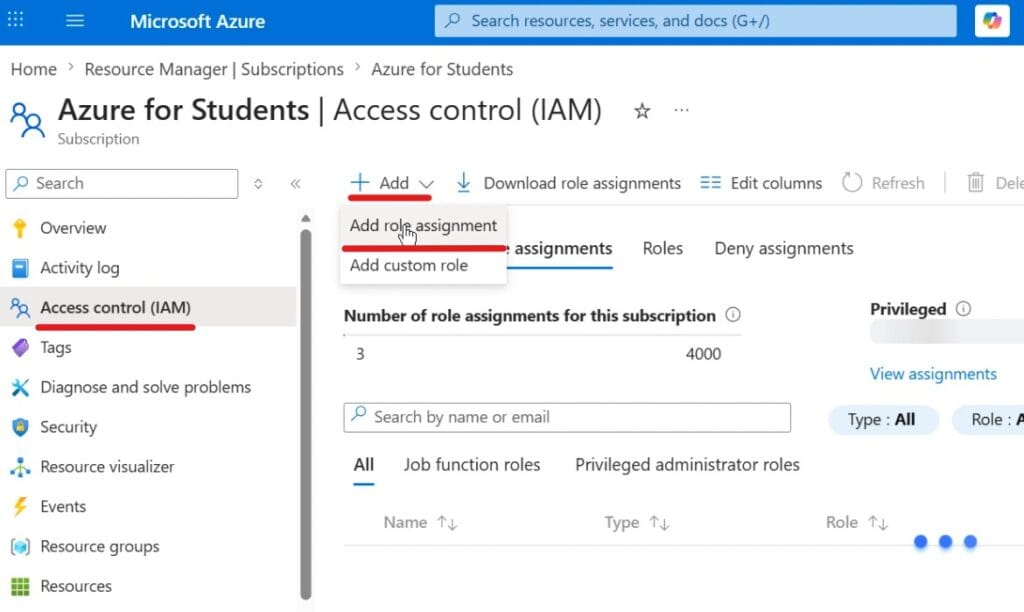
Azure RBAC Roles (Role-Based Access Control roles) are permissions assigned to users, groups, or service principals that define what actions they can perform on Azure resources. RBAC ensures secure, least-privilege access management across subscriptions, resource groups, and resources. A system that allows fine-grained access management to Azure resources. Roles can be assigned at different levels — Management Group, Subscription, Resource Group, or individual Resource.
Definition:
Role‑Based Access Control (RBAC) roles that manage resource‑level permissions.
Why Important:
- Controls who can create, modify, or view resources.
- Prevents unauthorized changes to workloads.
Examples:
- Owner: Full access, including delegation.
- Contributor: Create/manage resources but cannot assign roles.
- Reader: View‑only access.
- Custom Roles: Define granular permissions tailored to your needs.

Best Practice:
- Combine Entra Roles (directory‑level) with Azure Roles (resource‑level) for complete governance.
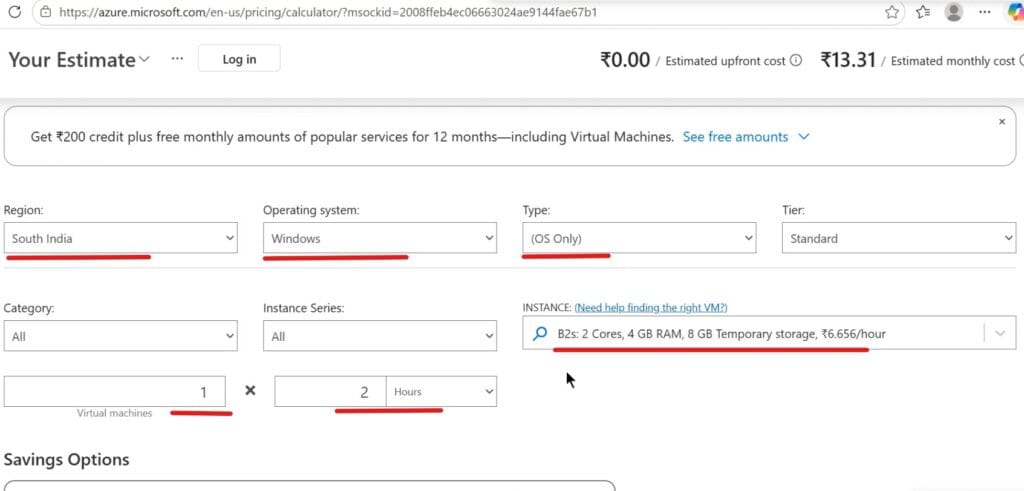
The Azure Price Calculator is a web-based tool provided by Microsoft that helps estimate the cost of Azure services before deployment which can be exported or shared with stakeholders. It allows you to model workloads, compare options, and forecast monthly expenses based on your chosen configurations.
Definition:
An online calculator that estimates the cost of Azure services such as VMs, databases, storage, networking, and more.
Why Important:
- Helps plan budgets before deploying workloads.
- Avoids unexpected billing surprises.
Use Case:
- Model workloads (VMs, databases, storage, networking) before deployment.
- Compare costs across regions and service tiers.

Best Practice:
- Always run workloads through the calculator during planning.