
Top 50 Powerful PowerShell Commands Every IT Admin Should Know
For Daily Uses and Beginners
PowerShell is a must-have tool for system administrators, cloud engineers, and IT professionals. With the right commands, you can automate tasks, troubleshoot faster, and manage systems more efficiently.
If you’d like to watch a step‑by‑step walkthrough of Windows server 2022 or Windows 11 installation, and Basic & Advanced CMD commands, please visit our post-
Below are 50 powerful PowerShell commands with quick explanations.
Top 10 System Information & Management PowerShell Commands
- Get-ComputerInfo – Displays detailed system information.
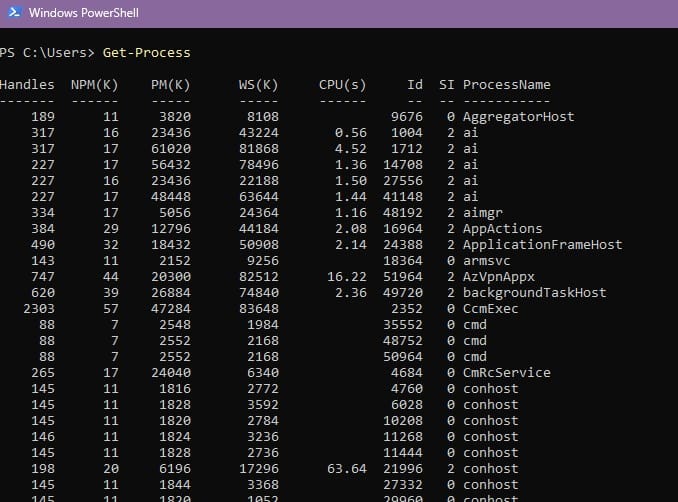
- Get-Process – Lists all running processes with process ID.

- Stop-Process -Name notepad – Kills a process by name. (Replace process name with notepad).
- Get-Service – Shows all services and their status.
- Start-Service -Name spooler – Starts a specific service. (Replace service name with spooler).
- Stop-Service -Name spooler – Stops a specific service. (Replace service name with spooler).
- Restart-Service -Name spooler – Restarts a service. (Replace service name with spooler).
- Get-EventLog -LogName System -Newest 20 – Views recent system logs (recent 20).
- Get-WmiObject Win32_OperatingSystem – Retrieves OS details and Version.
- Get-HotFix – Lists installed Windows updates.
Top 10 File & Folder Operations PowerShell commands
- Get-ChildItem C:\ – Lists files/folders in a directory (C:\).
- New-Item -Path C:\Test -ItemType Directory – Creates a new folder. (Test folder in C:\).
- Remove-Item C:\Test -Recurse – Deletes a folder and contents (Test folder).
- Copy-Item C:\file.txt D:\ – Copies a file. (From C: drive to D: drive, change path or file name as per requirement).
- Move-Item C:\file.txt D:\ – Moves a file.
- Rename-Item C:\old.txt new.txt – Renames a file. (From old.txt to new.txt).
- Get-Content file.txt – Reads file contents from file.txt.
- Set-Content file.txt “Hello World” – Writes text to a file, in file.txt. If file is not in same working directory, use full file path like C:\file.txt.
- Add-Content file.txt “New Line” – Appends text to a file.
- Clear-Content file.txt – Clears file contents.
Top 10 User & Permission Management PowerShell commands
- Get-LocalUser – Lists local users.
- New-LocalUser -Name TestUser -Password (Read-Host -AsSecureString) – Creates a new user, It will prompt to set password.
- Remove-LocalUser -Name TestUser – Deletes a user.
- Get-LocalGroup – Lists local groups.
- Add-LocalGroupMember -Group Administrators -Member TestUser – Adds user to a group. (Add Testuser to Administrators).
- Remove-LocalGroupMember -Group Administrators -Member TestUser – Removes user from a group.
- Get-Acl C:\Test – Displays file/folder permissions.
- Set-Acl C:\Test (Get-Acl D:\Source) – Copies permissions from another folder. (Copy permissions from D:\source to C:\Test folder).
- Get-ADUser -Filter * – Lists Active Directory users (requires AD module).
- Get-ADGroupMember “Domain Admins” – Lists members of a domain group (Domain Admins).
Top 10 Networking & Connectivity PowerShell commands
- Test-Connection google.com – Pings a host. (Like google.com or IP address).
- Get-NetIPAddress – Shows IP configuration.
- Get-NetAdapter – Lists network adapters.
- Disable-NetAdapter -Name “Ethernet” – Disables a network adapter with adapter name like Ethernet.
- Enable-NetAdapter -Name “Ethernet” – Enables a network adapter with adapter name like Ethernet.
- Get-NetTCPConnection – Displays active TCP connections.
- Get-DnsClientServerAddress – Shows DNS servers on all adapters.
- Set-DnsClientServerAddress -InterfaceAlias “Ethernet” -ServerAddresses 8.8.8.8 – Sets DNS server on a adapter like Ethernet. (Change 8.8.8.8 with your DNS server IP).
- Get-NetFirewallRule – Lists firewall rules.
- New-NetFirewallRule -DisplayName “AllowApp” -Direction Inbound -Program “C:\app.exe” -Action Allow – Creates a firewall rule. (Rule name -AllowApp, type – Inbound and allowing – App.exe, replace accordingly).
Top 10 Automation & Advanced Tasks PowerShell commands
- Get-Job – Lists background jobs.
- Start-Job -ScriptBlock {Get-Process} – Runs a command as a background job. (Replace Get-Process with your command which you want to run in background).
- Receive-Job -Id 1 – Gets results from a job. (replace job ID with required one).
- Remove-Job -Id 1 – Deletes a job. (replace job ID with required one).
- Get-ScheduledTask – Lists scheduled tasks.
- Register-ScheduledTask – Creates a new scheduled task.
- Get-Module – Lists installed PowerShell modules.
- Install-Module -Name Az – Installs a module from PSGallery. (replace module name with Az).
- Import-Module Az – Loads a module. (replace module name with Az).
- Export-Csv processes.csv -NoTypeInformation – This can be pipe to another command to Exports data to CSV. Like Get-Process | Export-Csv processes.csv -NoTypeInformation it will exports processes to a CSV file in working directory.
Many of these commands can be Combine into scripts to automate repetitive tasks like user creation, log collection, or system monitoring.