
To promote a server to a DC, you must first install the AD DS role using Server Manager.
Steps:-
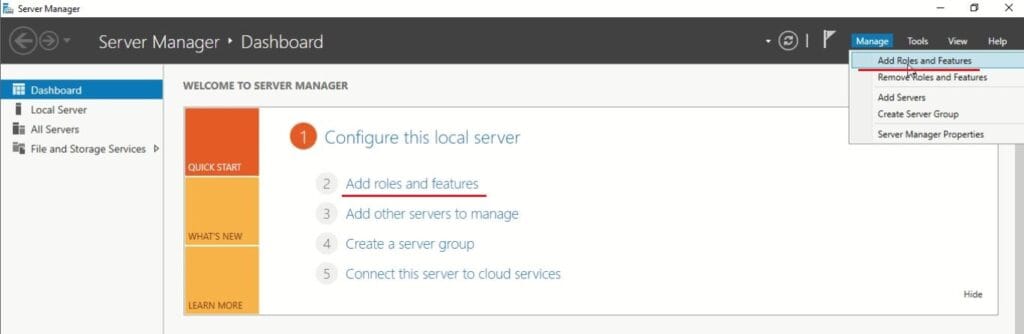
- Open Server Manager → Select Add Roles and Features → Next.

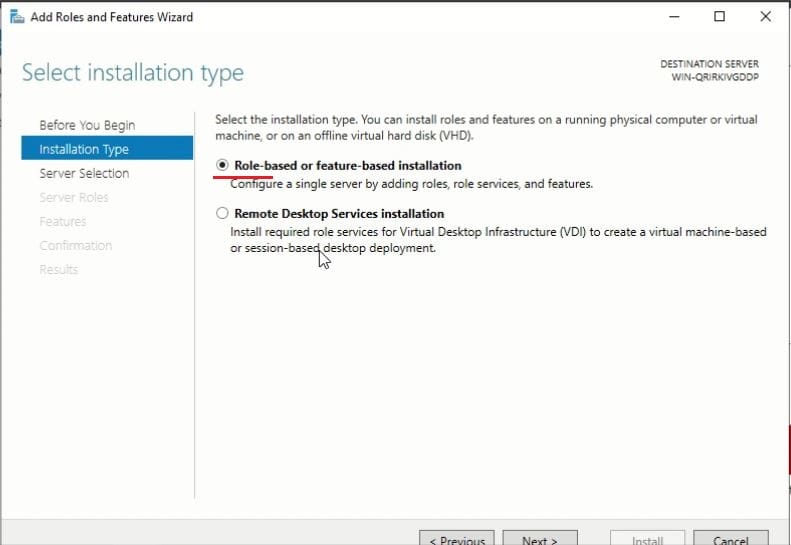
- In the installation type wizard, choose Role-based or feature-based installation.
- Why this option? It installs roles/features on a specific server. Other options like Remote Desktop Services installation are for RDS environments.

- Why this option? It installs roles/features on a specific server. Other options like Remote Desktop Services installation are for RDS environments.
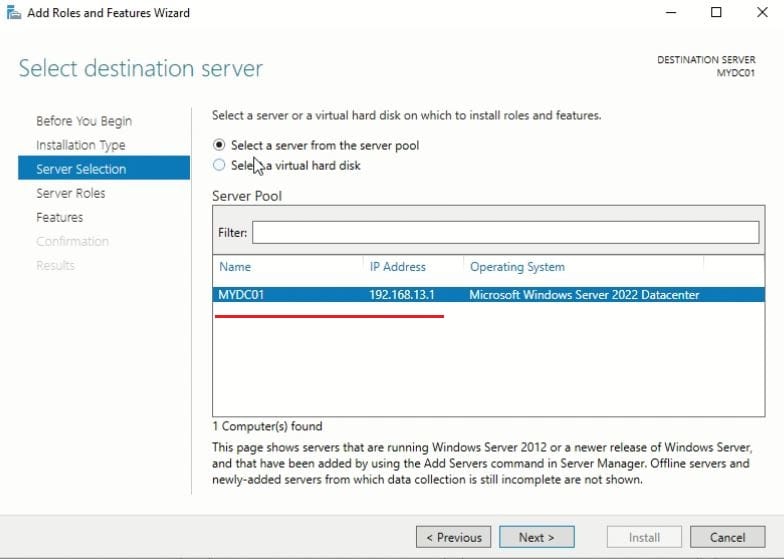
- Select a server from the server pool → Select your server → Next.

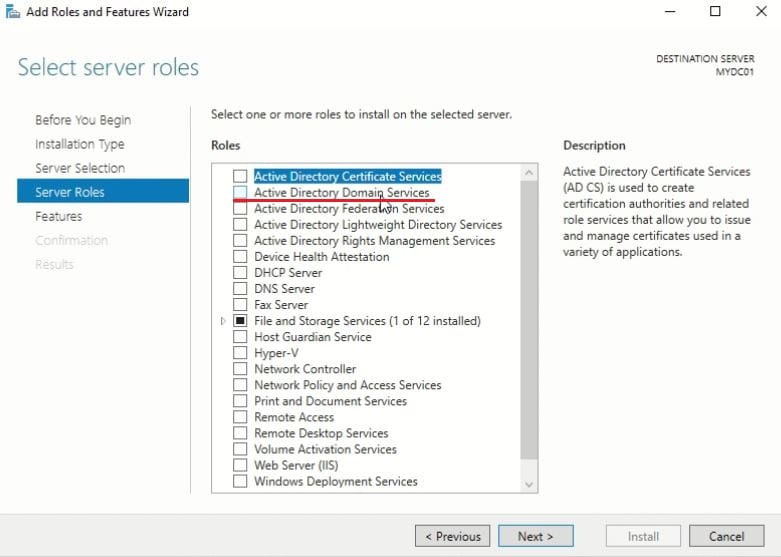
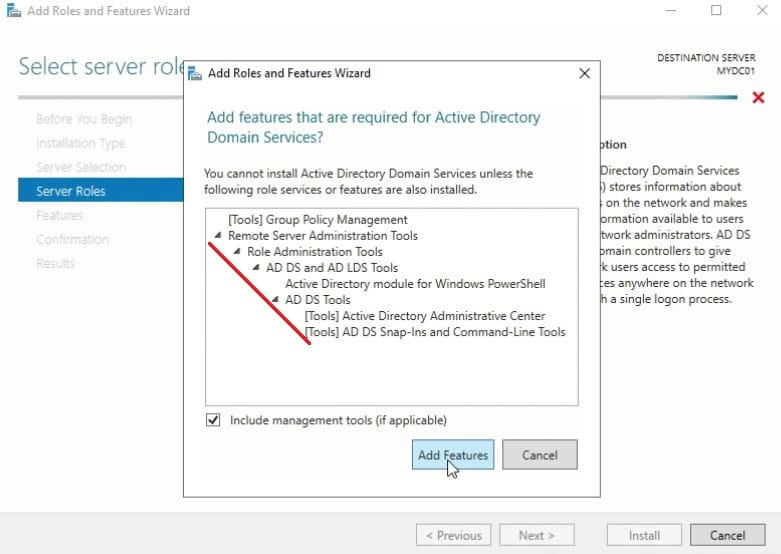
- Select Active Directory Domain Services (AD DS) Role.

- Click on Add Features on Add required features screen when prompted.

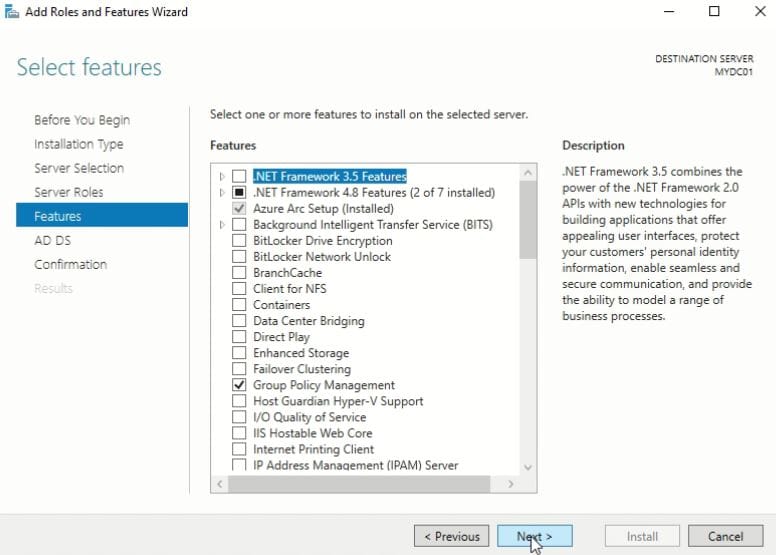
- Click Next.
- Click Next on select features window (If any additional feature required, select here).

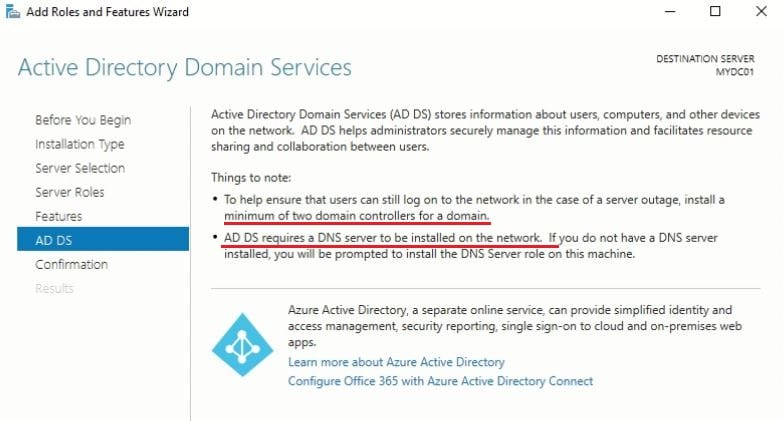
- Click Next on AD DS window, It shows information regarding AD DS, DNS requirement and additional DC.

- Select the check box to restart the server automatically if required → Yes → Install.

- Open Server Manager → Select Add Roles and Features → Next.
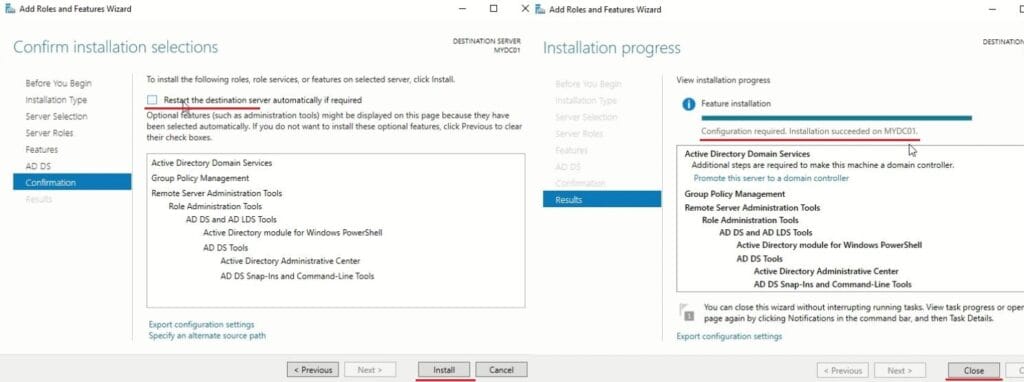
The AD DS role installation will complete, but the server is not yet a Domain Controller. Next, we’ll promote it to DC.
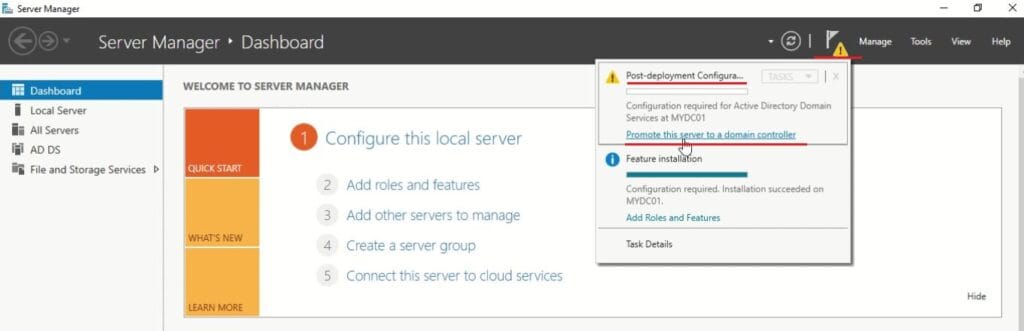
After AD DS role installation, a notification appears in Server Manager for post-deployment configuration: “Promote this server to a domain controller”.
Steps:
- Server Manager → Click the notification.
- Click on Promote this server to a domain controller to launch Active Directory Domain Services Configuration Wizard.

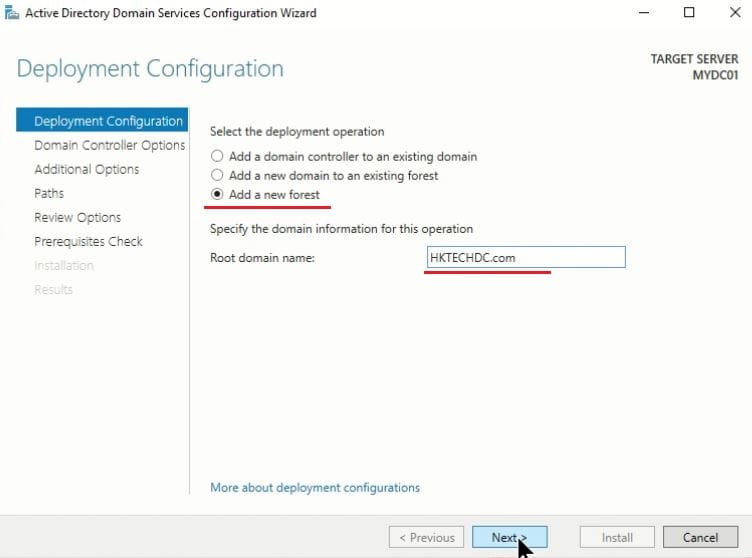
- Choose Add a new forest (for your first DC).
- Why this option? A forest is the top-level container in AD. If this is your first DC, you must create a new forest.
- Other options:
- Add a domain controller to an existing domain: Used when adding redundancy or additional DC.
- Add a new domain to an existing forest: Used when expanding an existing AD environment like child or tree domain.
- Enter your domain name (e.g.,
xyz.com,orxyz.in, orxyz.local) → Next.
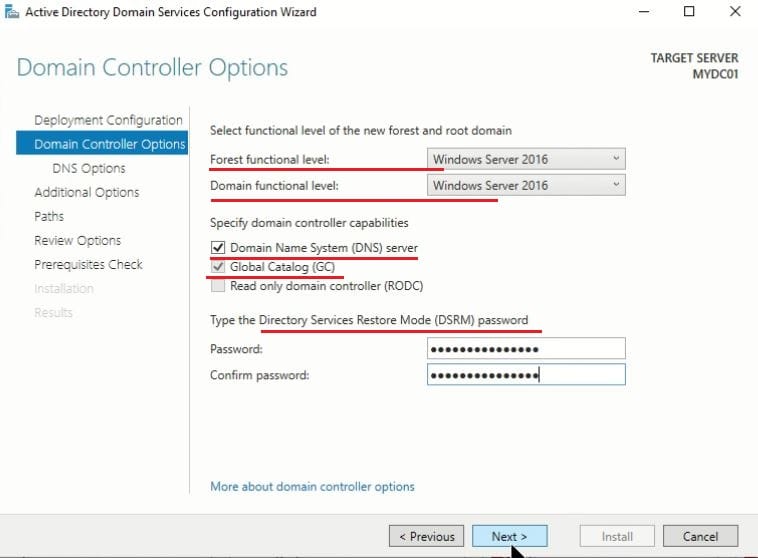
- Select Functional level, DNS server, GC and DSRM options as below → Next.
- Forest Functional Level (FFL): Defines the minimum Windows Server version for all DCs in the forest. Higher levels unlock newer AD features. For Win server 2022, select the Windows Server 2016.
- Domain Functional Level (DFL): Defines the minimum Windows Server version for all DCs in the domain. Controls available domain-specific features. For Win server 2022, select the Windows Server 2016.
- Select DNS Server: Domain Name System(DNS) translates names into IP addresses or name resolution. AD relies on DNS for locating DCs and services. Without DNS, authentication fails.
- Global Catalog (GC): Must be enabled for the first DC.
- Set Directory Services Restore Mode (DSRM) password. A special password used when booting into DSRM for AD repair/recovery or during disaster recovery. Store securely.
- Note :- Read-only Domain Controller (RODC): Not for first DC; used in branch offices.

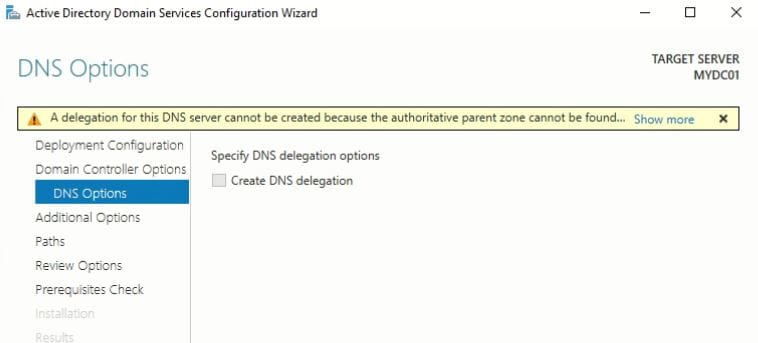
- Click Next on DNS Delegation window.

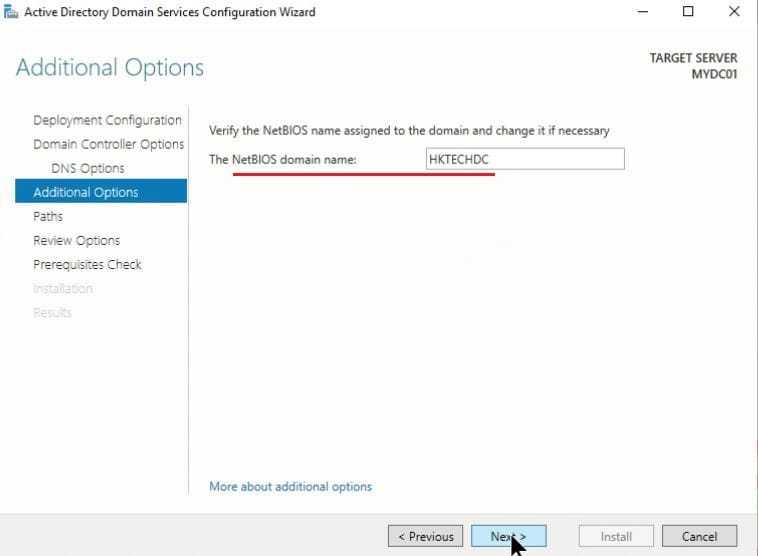
- NetBIOS domain name: The wizard generates a short name (e.g.,
xyz) for domain. This is legacy naming system. Accept default unless you have a naming convention → Next.
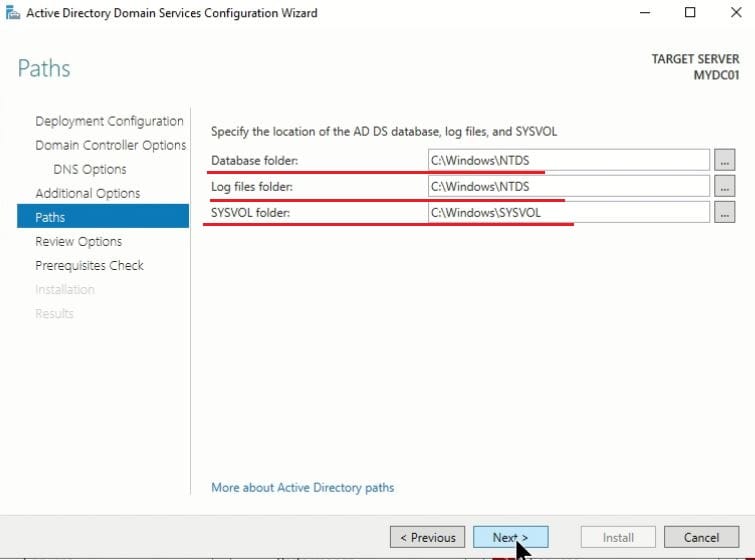
- Configure Paths for database, log files, and SYSVOL. Keep default path for labs or testing; in production, place on separate drives for performance → Next.
- Database (NTDS.dit): Stores all AD objects.
- Log Files: Record AD transactions for recovery.
- SYSVOL: Shared folder for Group Policy and logon scripts.

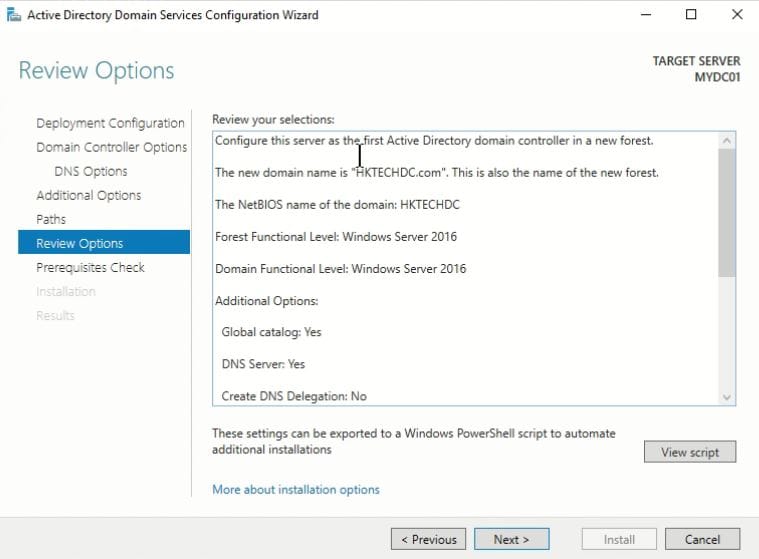
- Review your configuration → Next.

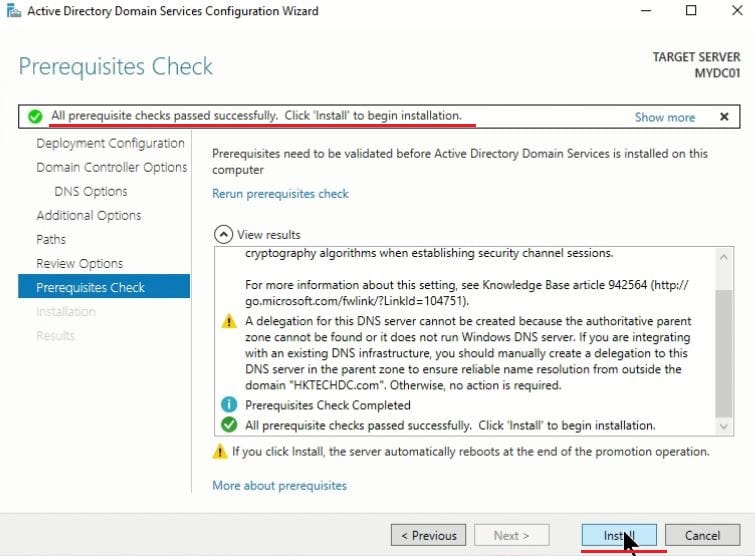
- Once Prerequisites check Passed, Click Install.

- Once Active Directory is installed successfully, the server will reboot and perform initial configuration, which may take some time.

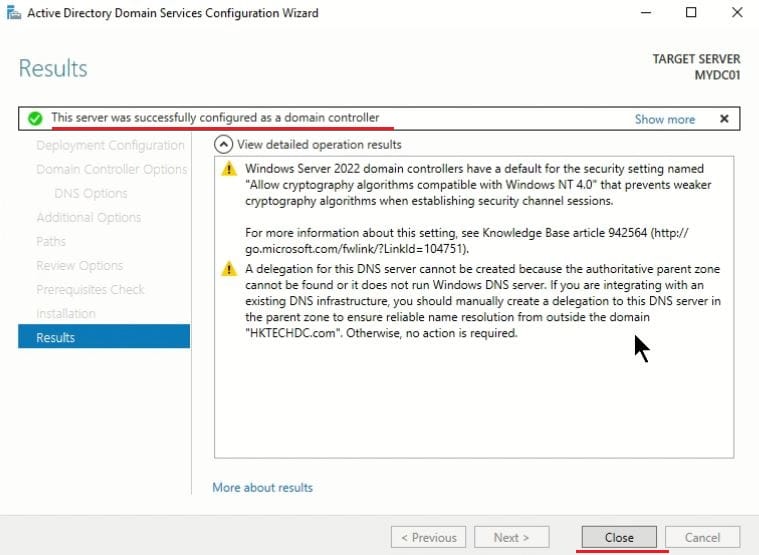
The Windows Server 2022 machine has been successfully promoted to a Domain Controller.
Once the server reboots, Login the server using domain credentials and verify the following:
- Run basic command i.e., whoami, hostname, ipconfig /all.

- Open Active Directory Users and Computers (dsa.msc): Confirm domain structure or manage AD objects.

- Open DNS Manager: Check zones created for your domain or manage DNS records.

- Open Group Policy Management: Check domain or DC policies or manage policies.

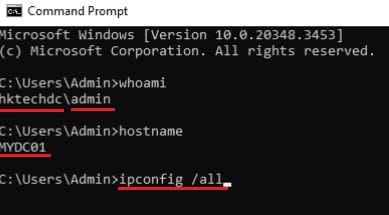
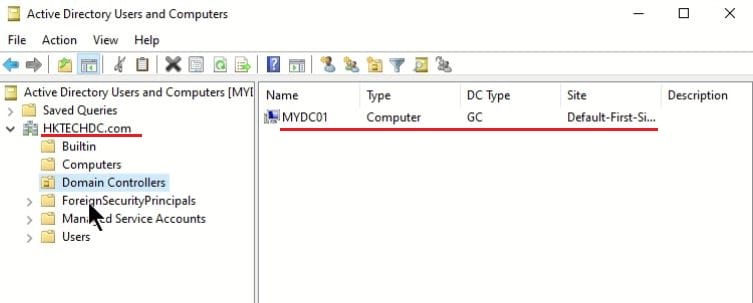
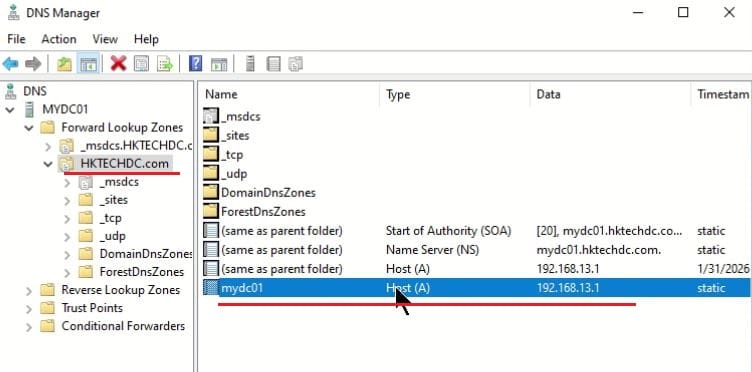
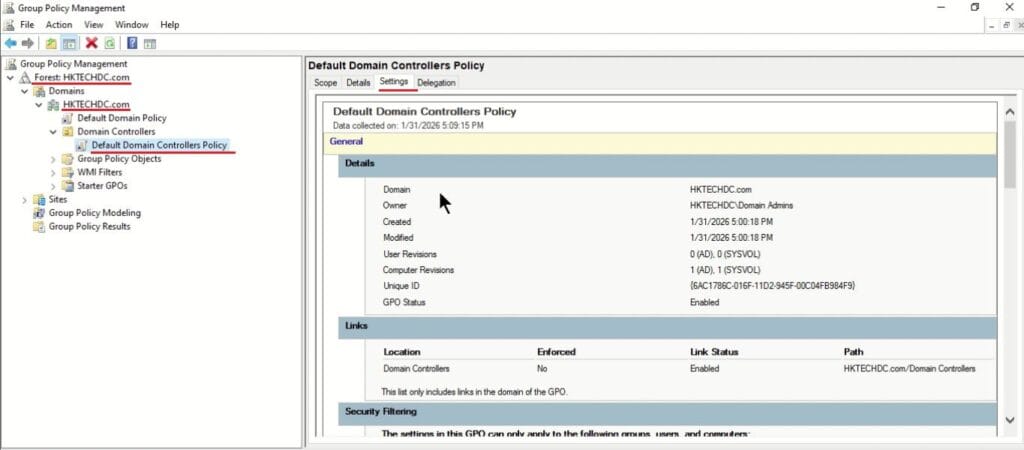
The Windows Server 2022 machine has been successfully promoted to a Domain Controller.
Pro Tip: Take a snapshot of your VM or backup after successful promotion. This allows easy rollback if there is any issues or need to revert.