
Steps:-
- Right‑click on the Taskbar.
- Select Task Manager. OR You can press Ctrl+Alt+Del keys and open Task Manager.

- Go to the Performance tab.
- At the bottom, you’ll see System Uptime displayed.

- As shown in the screenshot, this system has been running continuously for more than 10 days..
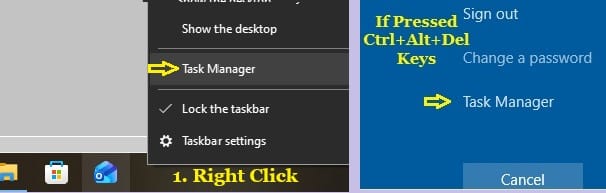
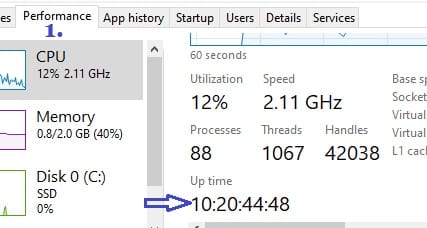
This is the quickest and most user‑friendly method.
Steps:-
- Open CMD (Command Prompt).
- Run the following command:
systeminfo | find “System Boot Time” - Output will be as –

- Open CMD (Command Prompt).
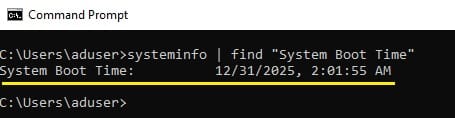
This will display the exact date and time when the system was last booted.
Steps:-
- Open CMD (Command Prompt).
- Run the following command:
wmic path Win32_OperatingSystem get LastBootUpTime - Output will be as –

- Open CMD (Command Prompt).
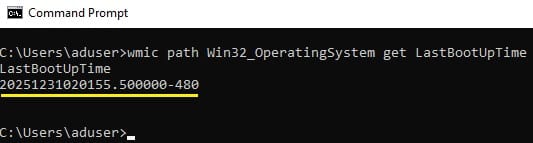
This provides the system’s last boot time in a raw format.
Steps:-
- Open CMD (Command Prompt). (“If systems are in domain, open CMD with a domain account with admin rights on the remote machine”).
- Run the following command:
i). If CMD opened with a domain account-
wmic /node:remotemachine_name_or_IPpath Win32_OperatingSystem get LastBootUpTimeii.) If systems are in workgroup or have local account-
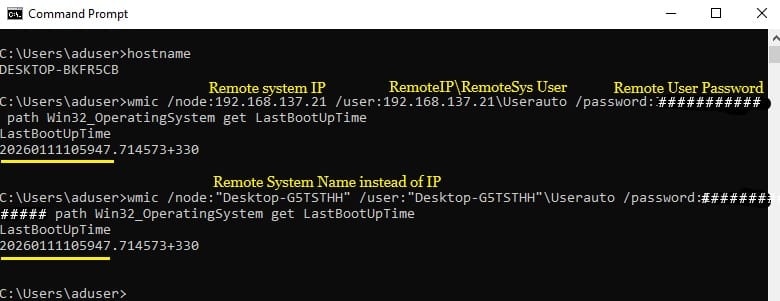
wmic /node:remotemachine_name_or_IP/user:remotemachine_name_or_IP\RemoteUsername/password:RemoteUserPasswordpath Win32_OperatingSystem get LastBootUpTimeiii.) Replace the strikethrough text with your actual Remote system name, remote user name and password.
- Output will be as –

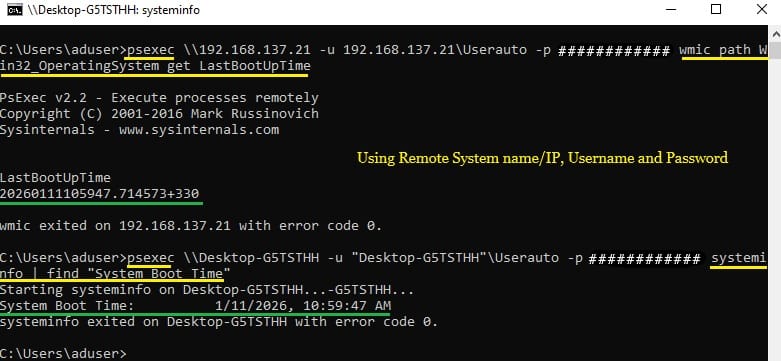
- Additionally, you can download the PsExec utility from the Microsoft website and use it to run commands on a remote system. For example:
i.) With wmic– psexec \\
remotemachine_name_or_IP-uremotemachine_name_or_IP\RemoteUsername-pRemoteUserPasswordwmic path Win32_OperatingSystem get LastBootUpTimeii.) With systeminfo– psexec \\
remotemachine_name_or_IP-uremotemachine_name_or_IP\RemoteUsername-pRemoteUserPasswordsysteminfo | find “System Boot Time”
- Points to Keep in Mind for Remote Command-
i.) Network connectivity: Ensure systems can communicate over the network (ping test, name/IP resolution).ii.) WMI service: The Windows Management Instrumentation (WMI) service must be running and allowed through the firewall.
iii.) User account: The account you use must have local administrator rights on the remote system.
iv.) Administrative shares: If you encounter an Access Denied error, test connectivity to \\<RemoteSystemIP>\C$ or \\<RemoteSystemIP>\ADMIN$.
v.) UAC remote restrictions: If step (4) fails, check the following registry key on the remote system:
Open Regedit– Go to-
Computer\HKEY_LOCAL_MACHINE\SOFTWARE\Microsoft\Windows\CurrentVersion\Policies\System
LocalAccountTokenFilterPolicy (DWORD) = 1
(Review your security hardening documentation before making changes.)
- Open CMD (Command Prompt). (“If systems are in domain, open CMD with a domain account with admin rights on the remote machine”).
This is useful for IT administrators managing multiple systems.


Thank you. This is helpful and simple to understand with different ways.
Thank You.