
On VMware Workstation, you can create virtual machines for a wide range of operating systems, including Windows, Linux/Ubuntu, macOS, and even VMware ESXi. In this guide, we’ll focus on creating a VM for Windows Server 2022 Datacenter.Steps:-
- Open VMware Workstation → Click Create a New Virtual Machine.

- Choose Typical (recommended) or Custom (for advanced configuration).
- Select Installer disc image (ISO) → Browse and select the Windows Server 2022 ISO (Or you can select later in VM settings).
- Enter your username and password (optional) for automated installation.
- Configure hardware:
- Memory: 2-4 GB
- Processors: 2–8 cores
- Disk Size: 60–80 GB (single file recommended)
- Network Adapter: Do not use, we will configure it later.
- Review settings → Click Finish.

- Open VMware Workstation → Click Create a New Virtual Machine.
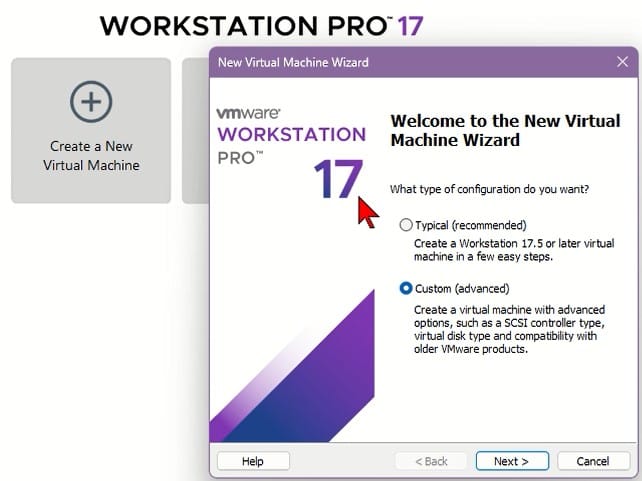
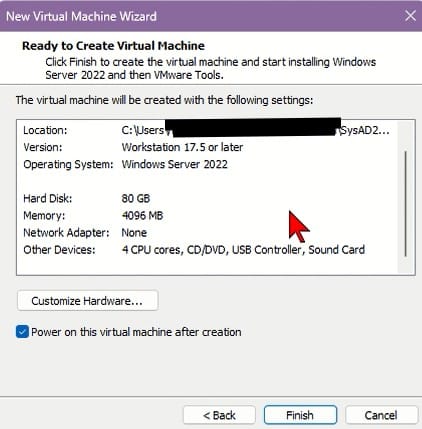
The VM will be created with the specified configuration.
We already selected the Windows Server 2022 ISO during VM creation. If not, you can click Edit VM Settings and select the ISO under the CD/DVD device option. If the ISO is not available, you can download it directly from the Microsoft website.
- Start the above created VM.
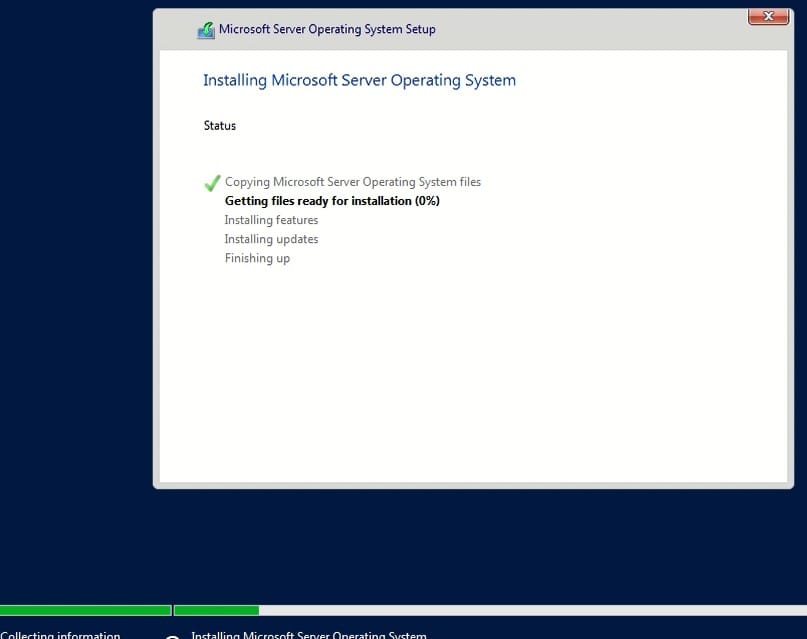
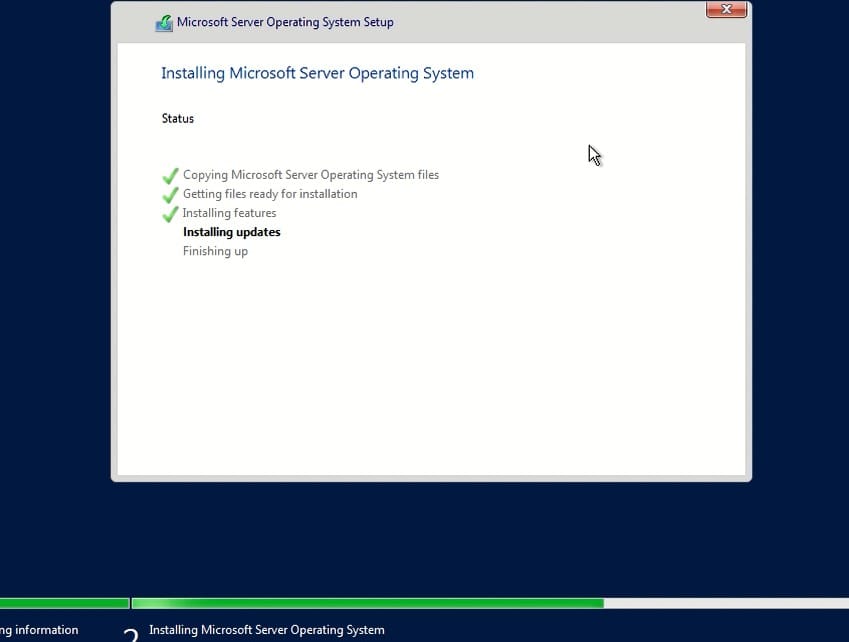
- The VM will boot from the ISO we selected and begin installation.

- Win Server 2022 Installation is fully automated.

- The VM will reboot 2–3 times.

- Once installation Setup is completed, log in with the credentials you provided.
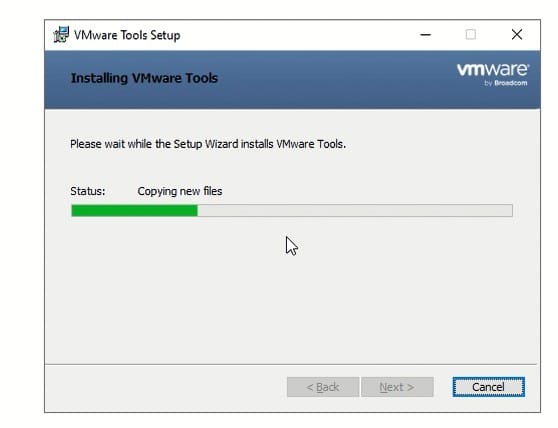
VMware Tools is a lightweight utility that enhances performance and improves integration between the host and guest operating systems in VMware virtual machines.
Benefits include:
- Better display resolution
- Clipboard sharing (copy/paste between host and VM)
- Improved network and disk performance
Steps:-
- The installation begin automatically after login, If not go to VM Menu→ Install VMware Tools.

- Follow the wizard and restart the VM when prompt.
- The installation begin automatically after login, If not go to VM Menu→ Install VMware Tools.
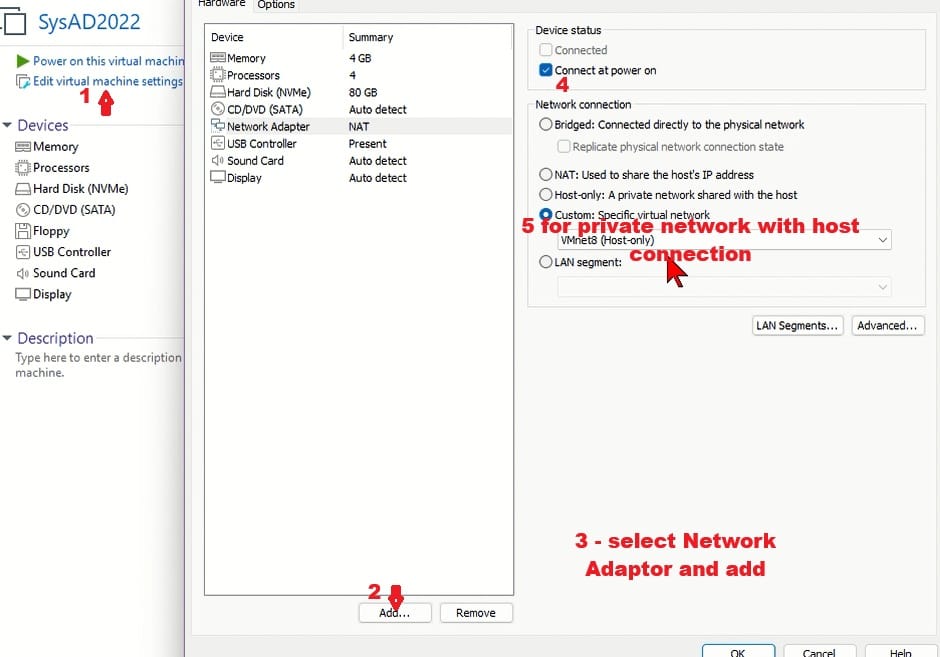
For a test lab or VM, a private network is recommended. If communication between the host and guest is required, we can configure both a private network and a host-only network.
- Shut down the VM.
- Go to VM Settings → Add Network Adapter.
- Select Host-only or Custom: Specific Virtual Network → OK.

- Start the VM again.
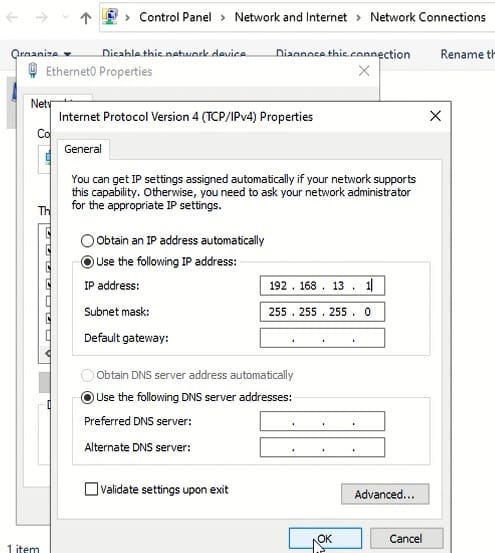
- Configure static IP on Server/VM:
- Open ncpa.cpl → Network Adapter Properties → IPv4 → Properties
- Select Use the following IP address
- Put the IP details.
- Example configuration:-
- IP:
192.168.10.10 - Subnet:
255.255.255.0 - Gateway: Leave blank (for isolated lab)

- Once done, click OK → Close.
The base VM is ready, It can be used for clone or create additional VMs for different roles.
Pro Tip: Use VMware’s Snapshot feature to save the VM state before making major changes. Snapshots make it easy to roll back if something goes wrong.