How to Promote a Server to Domain Controller (DC) on Windows Server 2022

Step-by-Step Guide: Installing Active Directory Domain Services (AD DS) and Promoting to Domain Controller

Creating a test lab or configuring a production environment often requires setting up a Domain Controller (DC). A DC manages authentication, authorization, and centralized administration through Active Directory (AD). The setting up a DC is a foundational step in mastering Windows Server administration.

In this guide, we’ll walk through installing the Active Directory Domain Services (AD DS) role and promoting a Windows Server 2022 machine to a Domain Controller.

1. Introduction: Why Set Up a Domain Controller?

A Domain Controller (DC) is the backbone of centralized identity and access management in Windows-based networks. It manages authentication, authorization, and directory services through Active Directory (AD).


Active Directory is a Microsoft technology that provides a structured, hierarchical database to manage users, groups, computers, and other resources in a network. It enables:

    • Centralized Authentication: Users log in once and gain access to authorized resources across the network.

    • Group Policy Management: Administrators can enforce security settings, software deployment, and desktop configurations across all domain-joined machines.

    • Scalability: AD supports multiple domains, forests, and trust relationships, allowing organizations to segment and manage resources securely and efficiently. It is suitable for both small labs and large enterprises.

    • Security: AD integrates with Kerberos and NTLM protocols to ensure secure authentication and access control.

Forest: A forest is the top-level container in Active Directory. It represents the entire AD infrastructure and acts as a security boundary. Forests are isolated from each other unless explicitly connected via trust relationships. Admins in one forest cannot access another forest unless trusts are configured. You need to create a forest when setting up your first DC. You can create multiple forests for different business units, subsidiaries, or test environments. Every forest contains:

    • One or more domains

    • A shared schema (rules for object types and attributes)

    • A shared configuration (replication topology and services)

    • A Global Catalog(GC) for searching across domains


Before proceeding, make sure you have Windows Server 2022 installed on a system or VM. If you haven’t done this yet, check out our post for step‑by‑step instructions: Create a VM and install Windows Server 2022.

2. Pre‑Check List to Promote a Server to DC

Before installing AD DS, ensure the following prerequisites are in place to avoid reconfiguration issues later:

    • Administrator Password: Set the secure password and remember it.

    • Hostname: Assign a meaningful server name (e.g., DC01), It can be set by sysdm.cpl command.

    • Static IP Address: Configure a static IP on the server that will be promoted to a DC.

    • DNS IP Address: Point to itself (loopback IP 127.0.0.1 or same as server IP) or an existing DNS server.

    • Domain Name: It’s the namespace for your AD environment. Decide the root domain (e.g., xyz.com,or xyz.in, or xyz.local).


We’re now ready to install the AD DS Role. If you’d like to watch a step‑by‑step walkthrough of these steps, please visit our YouTube Video.

3. Install the Active Directory Domain Services (AD DS) Role

To promote a server to a DC, you must first install the AD DS role using Server Manager.


Steps:-

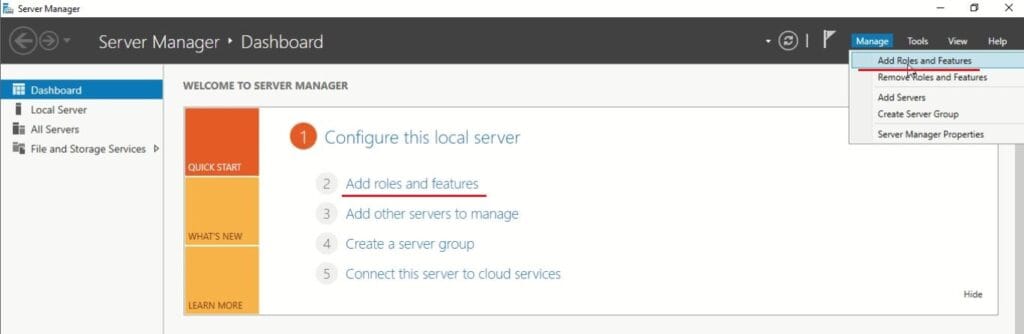
    1. Open Server Manager → Select Add Roles and Features Next.Install Active Directory Domain Service (AD DS) and Promote to Domain Controller (DC) - add roles
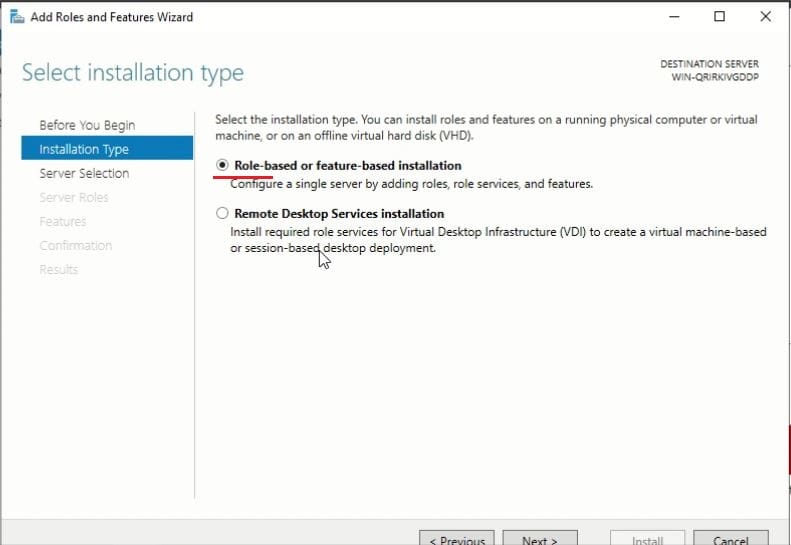
    2. In the installation type wizard, choose Role-based or feature-based installation.
        • Why this option? It installs roles/features on a specific server. Other options like Remote Desktop Services installation are for RDS environments.Install Active Directory Domain Service (AD DS) and Promote to Domain Controller (DC) - Role based
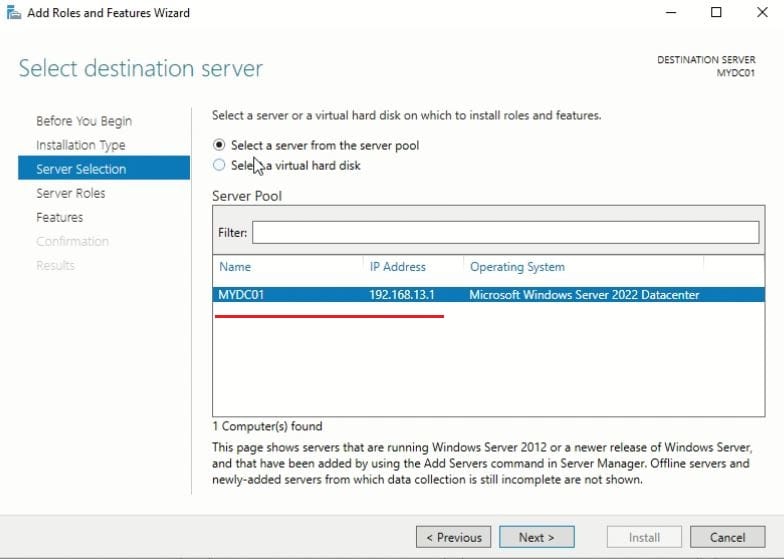
    3. Select a server from the server pool → Select your serverNext.Install Active Directory Domain Service (AD DS) and Promote to Domain Controller (DC) - select server
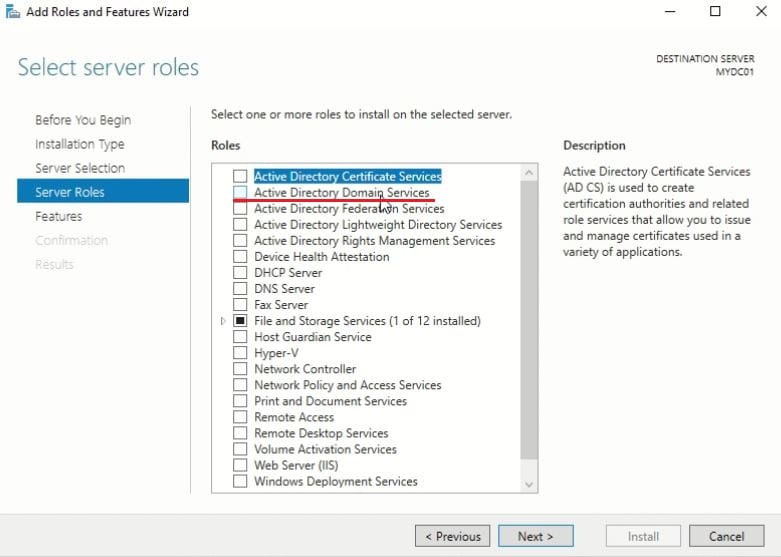
    4. Select Active Directory Domain Services (AD DS) Role.Install Active Directory Domain Service (AD DS) and Promote to Domain Controller (DC) - Add ADDS
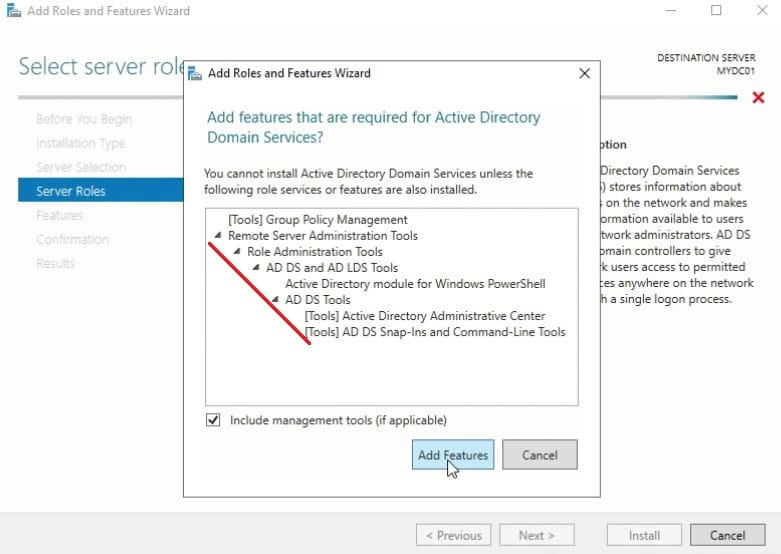
    5. Click on Add Features on Add required features screen when prompted.Install Active Directory Domain Service (AD DS) and Promote to Domain Controller (DC) - add required features
    6. Click Next.
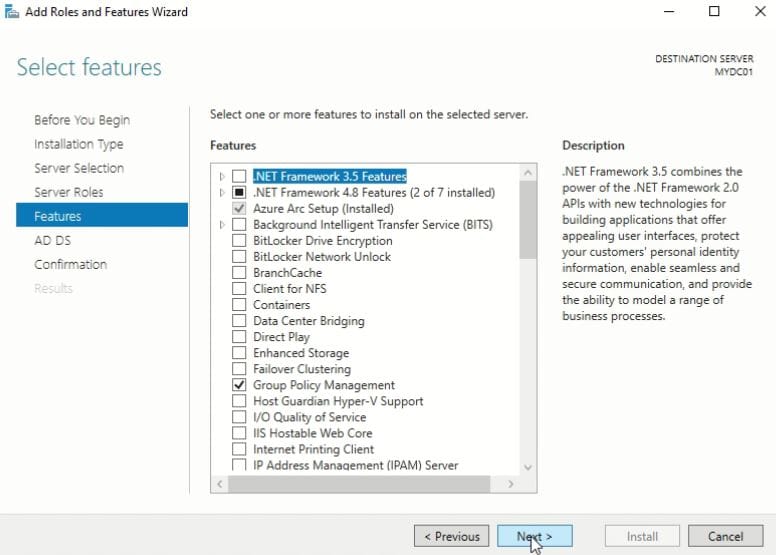
    7. Click Next on select features window (If any additional feature required, select here).Install Active Directory Domain Service (AD DS) and Promote to Domain Controller (DC) - Features
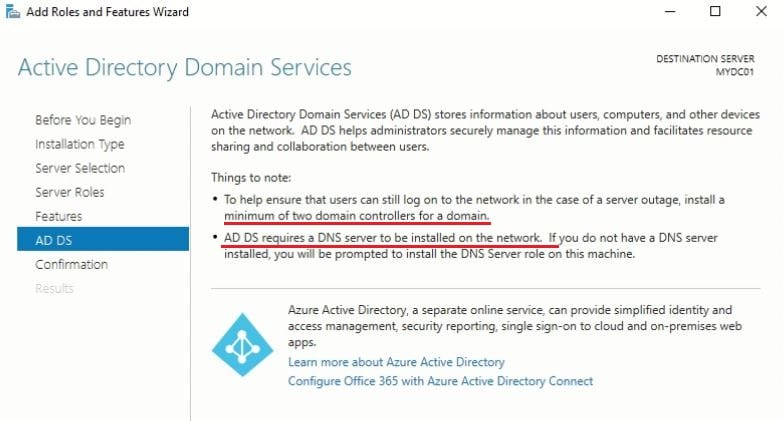
    8. Click Next on AD DS  window, It shows information regarding AD DS, DNS requirement and additional DC.Install Active Directory Domain Service (AD DS) and Promote to Domain Controller (DC) - ADDS
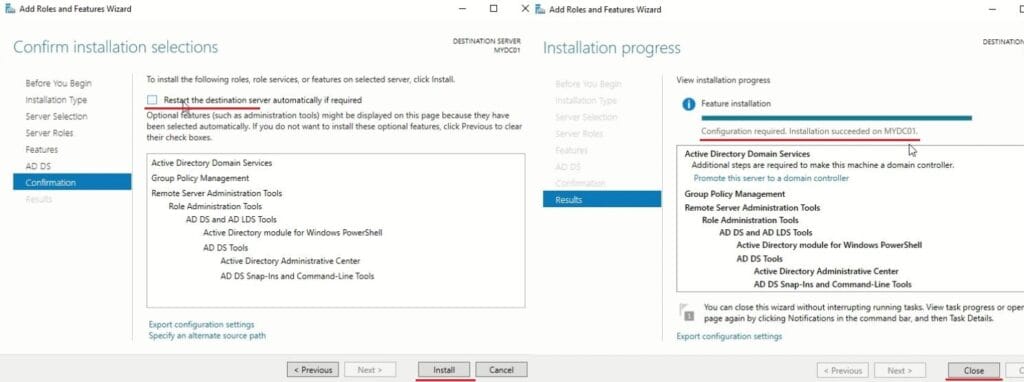
    9. Select the check box to restart the server automatically if required → YesInstall.Install Active Directory Domain Service (AD DS) and Promote to Domain Controller (DC) - installed ADDS

The AD DS role installation will complete, but the server is not yet a Domain Controller. Next, we’ll promote it to DC.

4. Promote the Server to Domain Controller

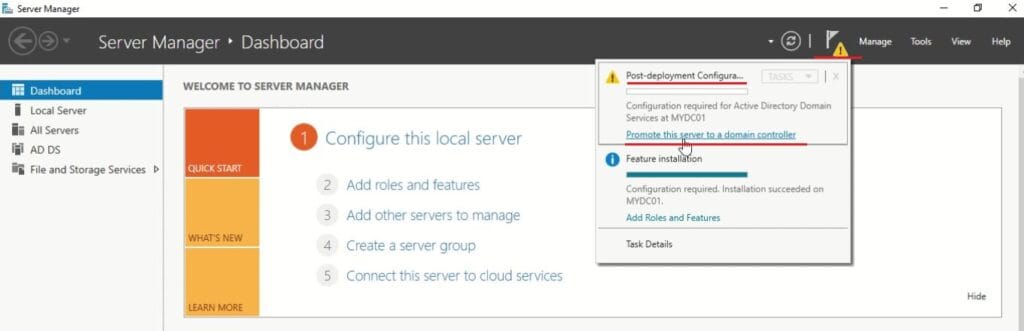
After AD DS role installation, a notification appears in Server Manager for post-deployment configuration: “Promote this server to a domain controller”.


Steps:

  1.  Server Manager → Click the notification.
  2. Click on Promote this server to a domain controller to launch Active Directory Domain Services Configuration Wizard.Install Active Directory Domain Service (AD DS) and Promote to Domain Controller (DC) - post config
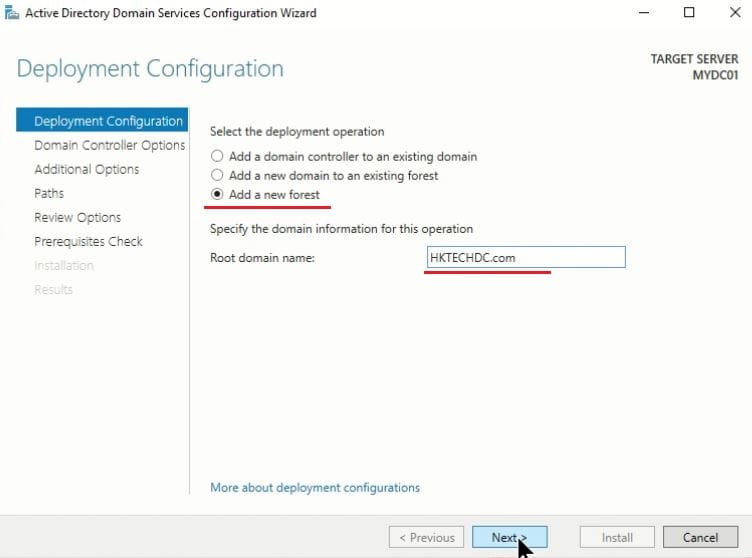
  3. Choose Add a new forest (for your first DC).
    • Why this option? A forest is the top-level container in AD. If this is your first DC, you must create a new forest.
    • Other options:
        • Add a domain controller to an existing domain: Used when adding redundancy or additional DC.
        • Add a new domain to an existing forest: Used when expanding an existing AD environment like child or tree domain.
  4. Enter your domain name (e.g., xyz.com,or xyz.in, or xyz.local) → Next.Install Active Directory Domain Service (AD DS) and Promote to Domain Controller (DC) - add forest
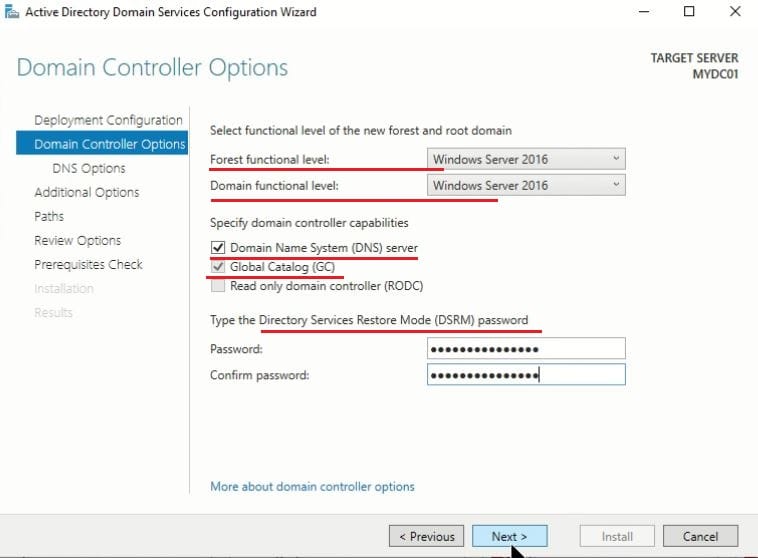
  5. Select Functional level, DNS server, GC and DSRM options as below → Next.
      • Forest Functional Level (FFL): Defines the minimum Windows Server version for all DCs in the forest. Higher levels unlock newer AD features. For Win server 2022, select the Windows Server 2016.
      • Domain Functional Level (DFL): Defines the minimum Windows Server version for all DCs in the domain. Controls available domain-specific features. For Win server 2022, select the Windows Server 2016.
      • Select DNS Server: Domain Name System(DNS) translates names into IP addresses or name resolution. AD relies on DNS for locating DCs and services. Without DNS, authentication fails.
      • Global Catalog (GC): Must be enabled for the first DC.
      • Set Directory Services Restore Mode (DSRM) password. A special password used when booting into DSRM for AD repair/recovery or during disaster recovery. Store securely.
      • Note :- Read-only Domain Controller (RODC): Not for first DC; used in branch offices.Install Active Directory Domain Service (AD DS) and Promote to Domain Controller (DC) - AD options
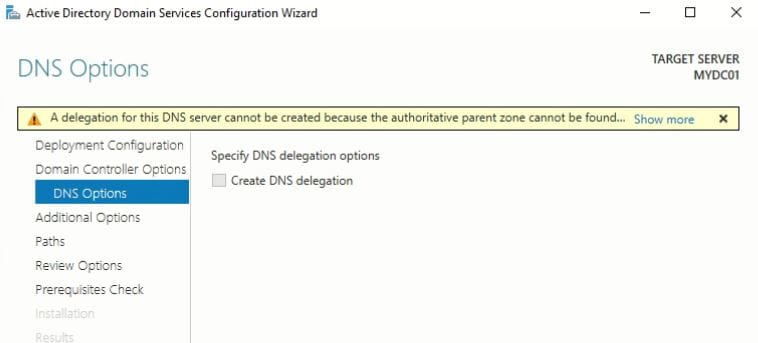
  6. Click Next on DNS Delegation window.Install Active Directory Domain Service (AD DS) and Promote to Domain Controller (DC) - DNS options
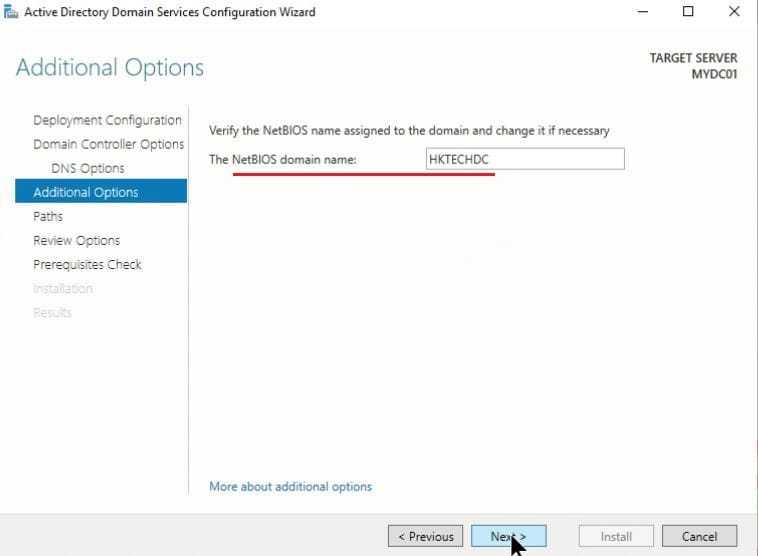
  7. NetBIOS domain name: The wizard generates a short name (e.g., xyz) for domain. This is legacy naming system.  Accept default unless you have a naming convention → Next.Install Active Directory Domain Service (AD DS) and Promote to Domain Controller (DC) - NetBIOS
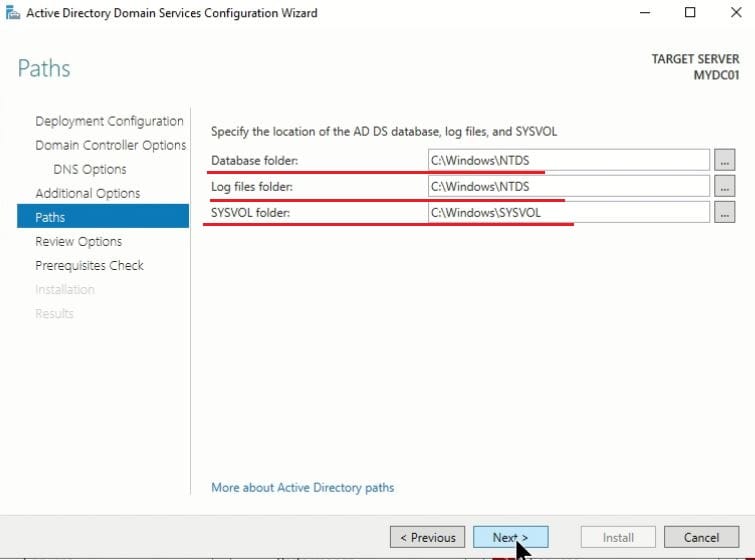
  8. Configure Paths for database, log files, and SYSVOL. Keep default path for labs or testing; in production, place on separate drives for performance → Next.
      • Database (NTDS.dit): Stores all AD objects.
      • Log Files: Record AD transactions for recovery.
      • SYSVOL: Shared folder for Group Policy and logon scripts.Install Active Directory Domain Service (AD DS) and Promote to Domain Controller (DC) - directory path
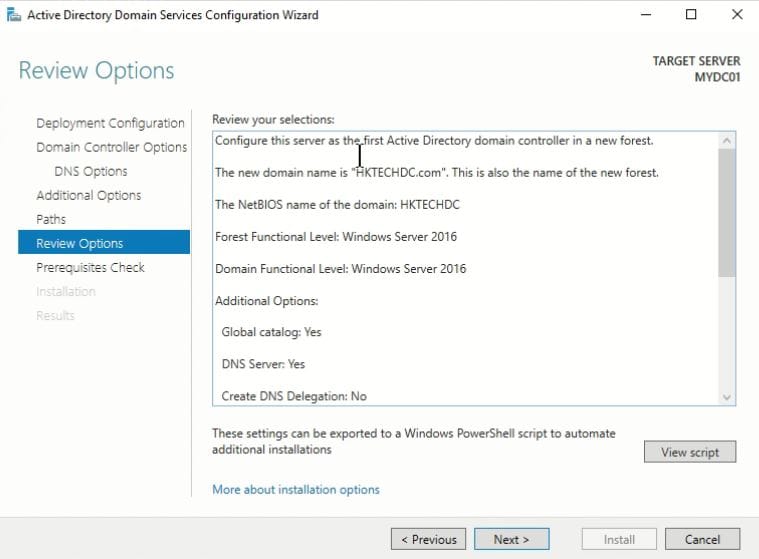
  9. Review your configuration → Next.Install Active Directory Domain Service (AD DS) and Promote to Domain Controller (DC) - review
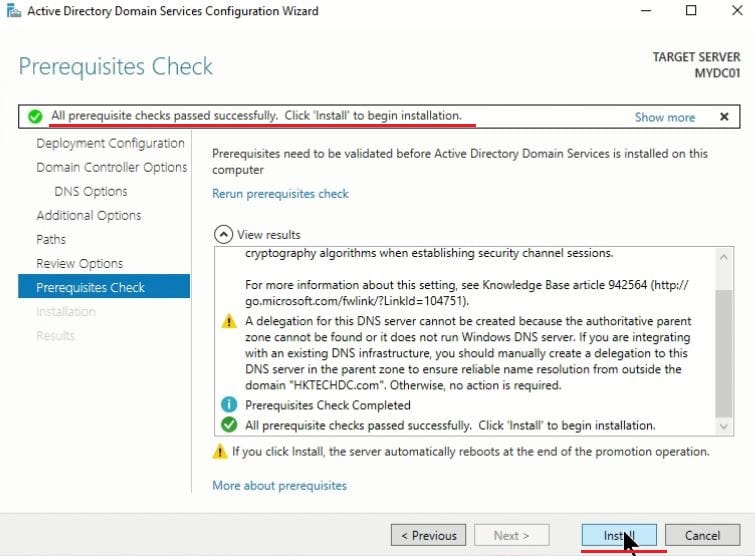
  10. Once Prerequisites check Passed, Click Install.Install Active Directory Domain Service (AD DS) and Promote to Domain Controller (DC) - Install AD
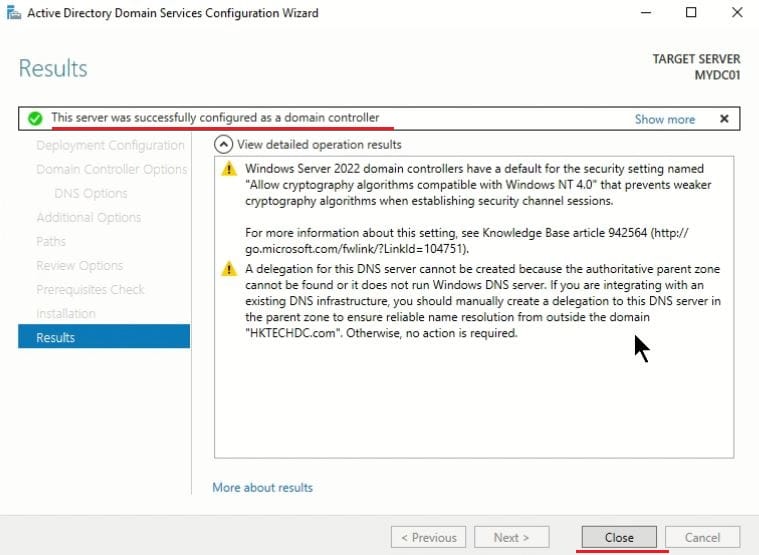
  11. Once Active Directory is installed successfully, the server will reboot and perform initial configuration, which may take some time.Install Active Directory Domain Service (AD DS) and Promote to Domain Controller (DC) - AD DNS installed


The Windows Server 2022 machine has been successfully promoted to a Domain Controller.

5. Post‑Installation Verification of the Domain Controller

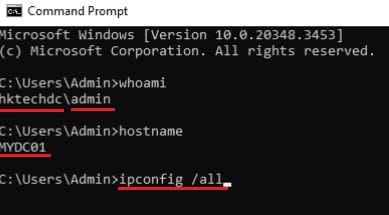
Once the server reboots, Login the server using domain credentials and verify the following:

  1. Run basic command  i.e., whoami, hostname, ipconfig /all.Install Active Directory Domain Service (AD DS) and Promote to Domain Controller (DC) - verify AD DC
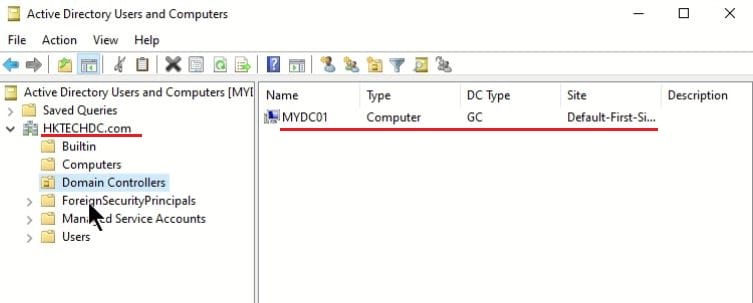
  2. Open Active Directory Users and Computers (dsa.msc): Confirm domain structure or manage AD objects.Install Active Directory Domain Service (AD DS) and Promote to Domain Controller (DC) - dsa.msc
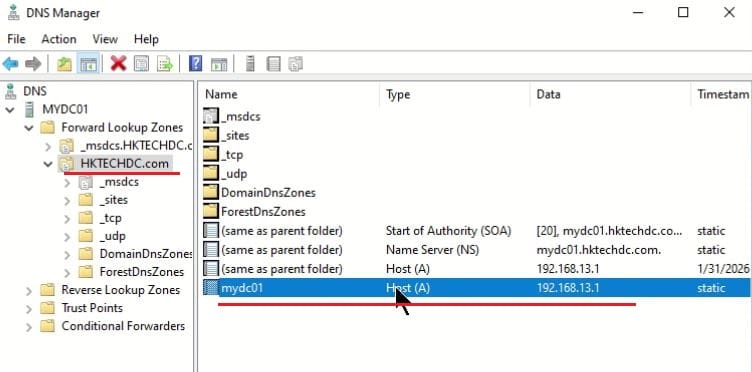
  3. Open DNS Manager: Check zones created for your domain or manage DNS records.Install Active Directory Domain Service (AD DS) and Promote to Domain Controller (DC) - DNS Manager
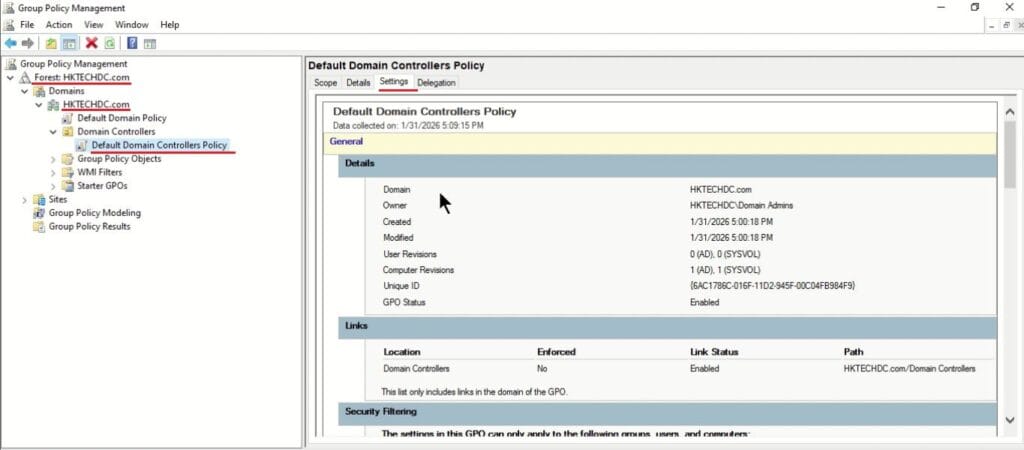
  4. Open Group Policy Management: Check domain or DC policies or manage policies.Install Active Directory Domain Service (AD DS) and Promote to Domain Controller (DC) - Group Policy


The Windows Server 2022 machine has been successfully promoted to a Domain Controller.


Pro Tip: Take a snapshot of your VM or backup after successful promotion. This allows easy rollback if there is any issues or need to revert.

You now have a fully functional Windows Server 2022 Domain Controller. This environment is ready for “Creating and managing users/groups”, “Configuring Group Policies”, “Testing enterprise IT concepts like replication, trust relationships, and DNS integration”.

Discover more:

Head over to our Blog page for the latest posts.

Share Your Thoughts

Your email address will not be published. Required fields are marked *

Scroll to Top